To sync Freshdesk tickets to Leanbase Compass, you need to input your Freshdesk's API and Freshdesk Domain
____________________________________________________________________________________________________________________________________________
-
To connect Freskdesk to Leanbase Compass
Open Leanbase Compass
Navigate to Configuration tab
Open Channel tab, click to Connect new channel
-
Select Freshdesk and fill in below credentials
This below is guide how to check your credentials
-
To find your API key:
Log in to your account.
Click on your profile picture on the top right and select Profile Settings.

On the right pane, click on the View API key option and complete the captcha verification.

Copy-paste this as required to authenticate third-party solutions.
You can reset the API Key to revoke the authorization to the app connected to Freshdesk. However, resetting the API key disconnects all other apps using this key to connect with Freshdesk. In this case, provide the new key to the other apps to continue using them again.
Note:
The API key will be displayed only when the agent is verified. Any activities via API are allowed as per the role assigned to the agent.
-
API keys will not be visible for accounts on the free plan.
To find your freshdesk domain
To find your Freshdesk domain, log into your Freshdesk account and look at the URL in your browser's address bar. Your domain name is the part of the URL before ".freshdesk.com". For example, if the URL is https://example.freshdesk.com/a/dashboard/sample, your domain name is example.
In this step, please copy full your domain URL, example:
https://example.freshdesk.comto fill in the domain field of Leanbase Compass
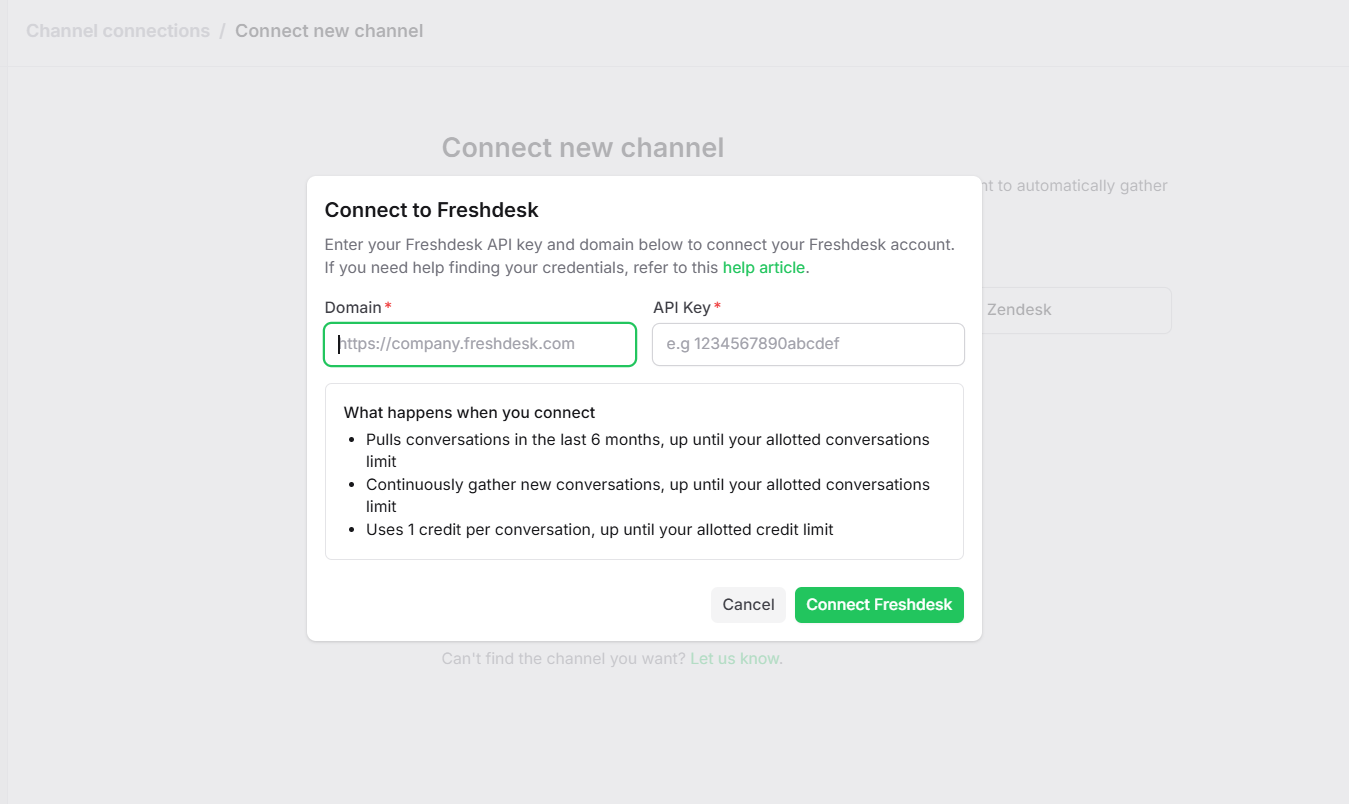
Note:
Pulls conversations in the last 6 months, up until your allotted conversations limit
Continuously gather new conversations, up until your allotted conversations limit
Uses 1 credit per conversations, up until your allotted credit limit
If you signed up before Aug 9, 2021, please click Previous plans to view your applicable plans