Switching to Leanbase? Great choice! This quick guide will walk you through the essential steps to migrate seamlessly to Leanbase.
In this guide, you'll find:
Key differences between Leanbase and Trello
How to seamlessly migrate your Trello data to Leanbase
How Leanbase different from Trello
-
Status and Section: Leanbase uses both status and section, while Trello only uses lists to display task statuses and organize tasks.
-
Status in Leanbase:
In Leanbase, users have three main status categories: Not Started, In Progress, and Done. They can add new statuses within these categories, specific to each board.
To reuse a custom status set, users must save it as a Settings Pack.
-
Section in Leanbase:
Users can create unlimited sections, or called lists in Trello in which each capable of storing tasks with different statuses.
To streamline workflows, users can assign a specific status to a section. When a status is set for a section, all tasks with that status will automatically be organized into that section.
-
Task level: Leanbase offers 3 levels: Module → Task → Subtask, where Module is the highest level, representing an epic, milestone, or feature. In contrast, Trello has a single task type (Task) and a smaller level called Checklist for subtasks.
-
Custom field:
In Leanbase, custom fields are linked to task types, with each task type having its own set of custom fields. To reuse a task type and its custom fields, users can save them as a Setting Pack. Custom fields can also be reused across the entire workspace.
In Trello, custom fields apply to all tasks on a board and are not restricted to specific task types.
Settings pack add-on features: A Leanbase Setting Pack includes Task Types with Custom Fields, Automations, Labels, and Statuses. Users can create, assign, or unassign Setting Packs to different boards, enabling them to reuse board configurations and streamline workflows across the entire workspace.
How to Import from Trello into Leanbase
How to Export a Trello Board as a CSV File
Open Your Trello Board: Log in to Trello and select the board you want to export.
Go to More Options: Click the three-dot menu or “Show Menu” in the top-right corner of your board.
Select “Export”: Under the menu, choose More > Print and Export.
Export as CSV: If you're using Trello Premium, you’ll see the option to Export as CSV. Click it to download the file.
Note: Free users can use a browser extension or API to export data if CSV export isn’t available.
Try the Leanbase Import Tool
Leanbase offers a new, streamlined tool for importing data from Asana boards into Leanbase quickly
Click the hamburger menu icon located on the right-hand side of the screen to open board settings
Select import tasks button
In the Import tasks section, drag the CSV file you wanted to import or click the Select CSV file to import
Upload the Trello CSV file
Important note:
Step 1: Move all members to Leanbase boards
Before importing, ensure all users from your old boards are added to Leanbase to prevent tasks from being unassigned.
Step 2: Map Trello Boards to Leanbase Boards
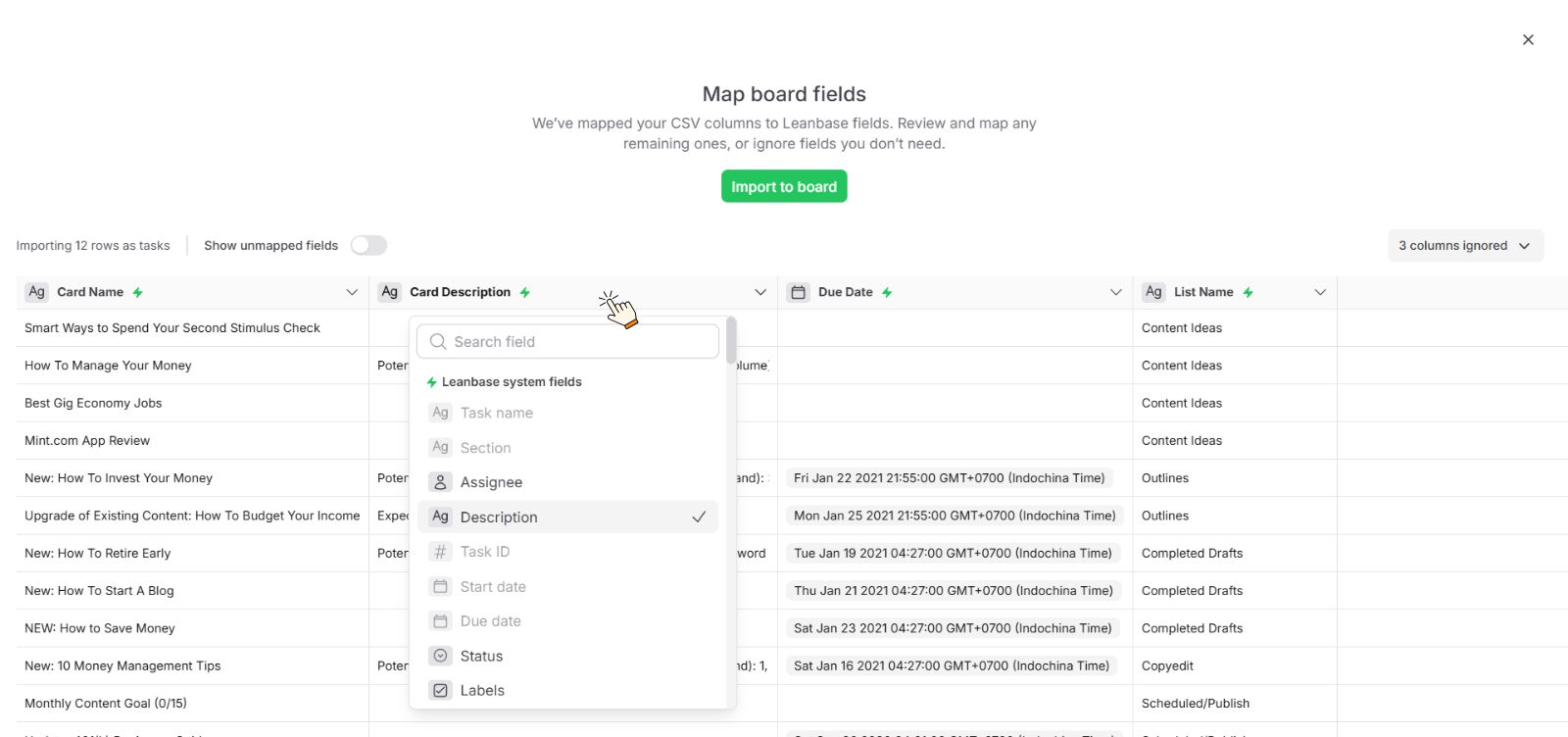
Automatic Field Mapping:
Leanbase automatically detects Trello fields and matches them with corresponding Leanbase fields. Users can click on each row to review and adjust these mappings as needed.
Field Customization Options:
Select a Leanbase system field as the default for tasks or other Leanbase fields.
Search for existing fields in your workspace or create a new custom field to match.
Choose to ignore fields that are not relevant.
Pro Tip:
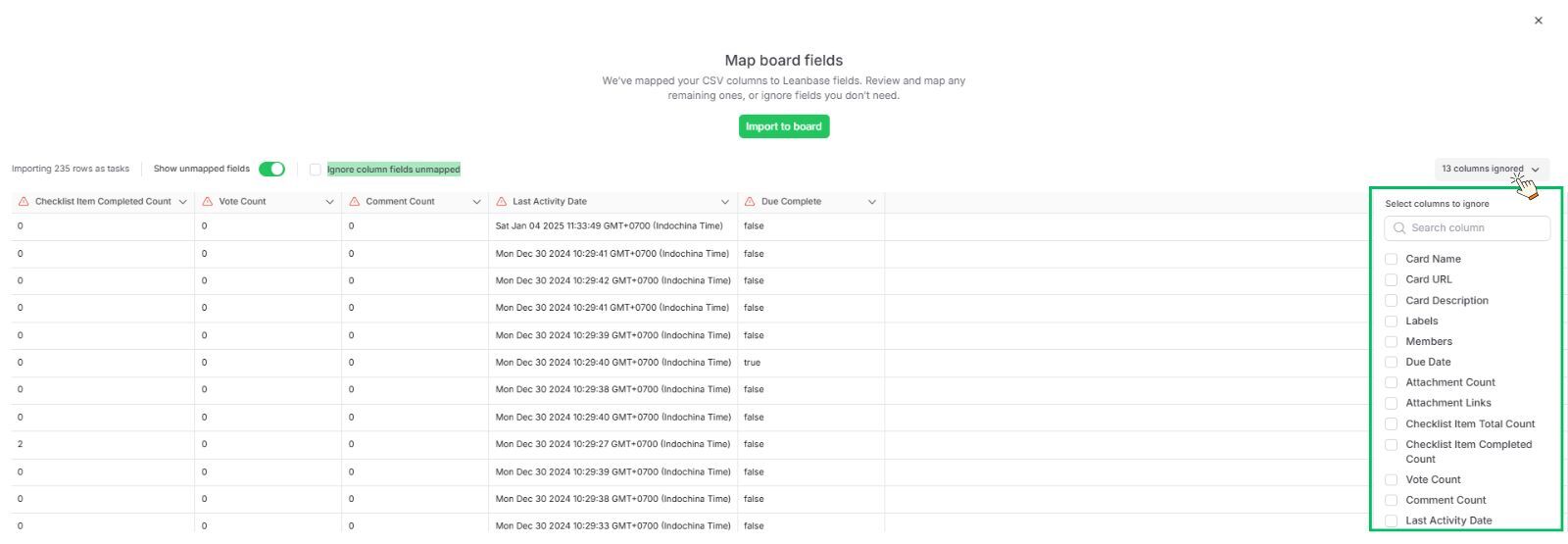
Enable Show Unmapped Fields to display only unmatched fields for easier review.
Use the Ignore column fields unmapped button to skip unnecessary fields and speed up the import process, avoiding time spent on irrelevant data.
Users should double-check the data mapping to ensure the correct information is imported accurately.
-
Trello standard field
Leanbase system field
Card Title
Task name
Status
Section
Members
Assignee
Description
Description
Card number
Task ID
Due date
Due date
Labels
Labels
Attachments
Attachments
Comment
Comment
Card
Task
Trello customfield field
Leanbase custom field
Dropdown
Dropdown
Text
Text field
Date
Date field
Check box
Check box
Number
Number field
Field Ignore Management:
Leanbase allows you to manage ignored fields during the import process effectively, user can select Show more button to unhide those ignored fields:
Ignore Specific Fields: Select individual fields that you don’t want to import and mark them as ignored.
Ignore All Fields: Quickly bypass all unmatched or irrelevant fields using the Ignore All Fields option on Unmapped Fields
Post-Import Task Management
-
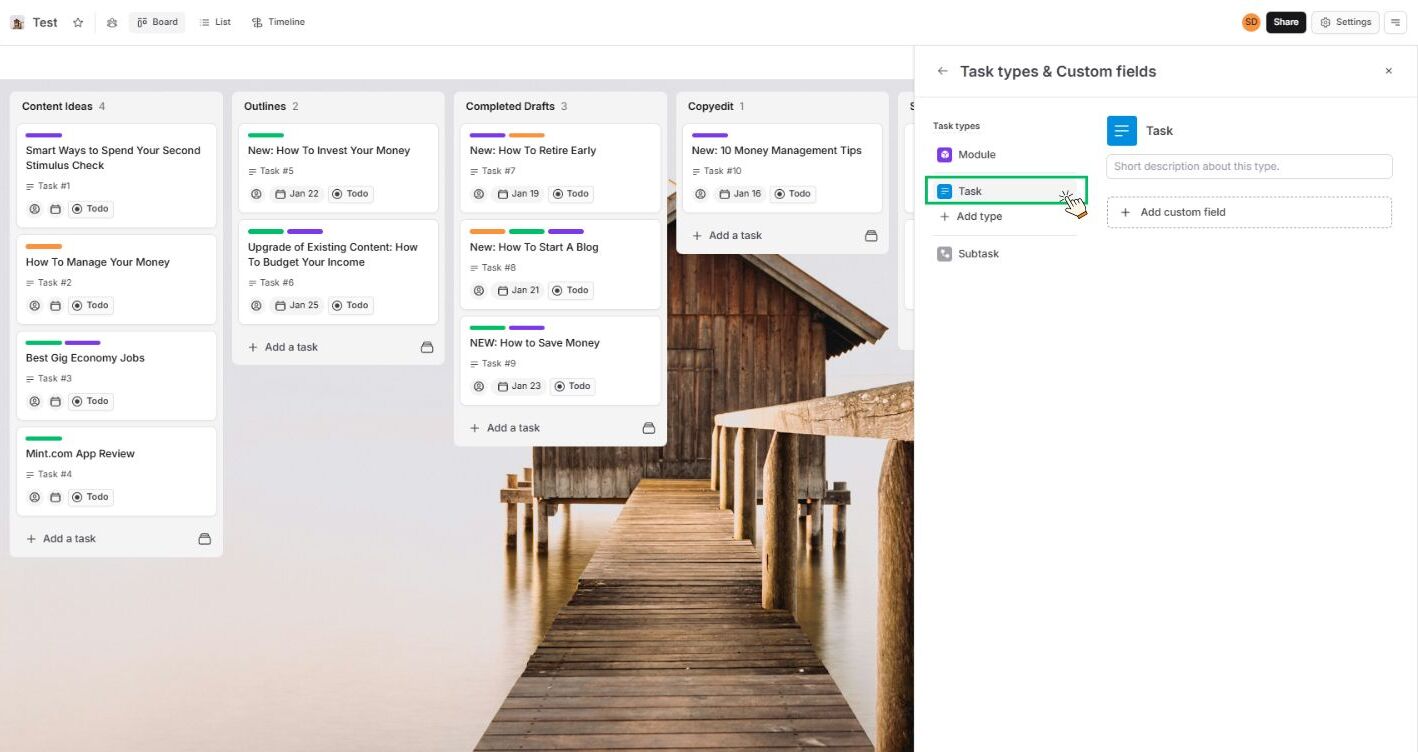
Default Task Type Assignment:
After importing, all Trello tasks will automatically use the first task type in the Leanbase board settings (commonly named "Task").
-
Checklists missing handling:
Trello checklists will not be imported.
-
To recreate them:
Navigate to the target task.
Copy and paste the checklist items manually into the task.
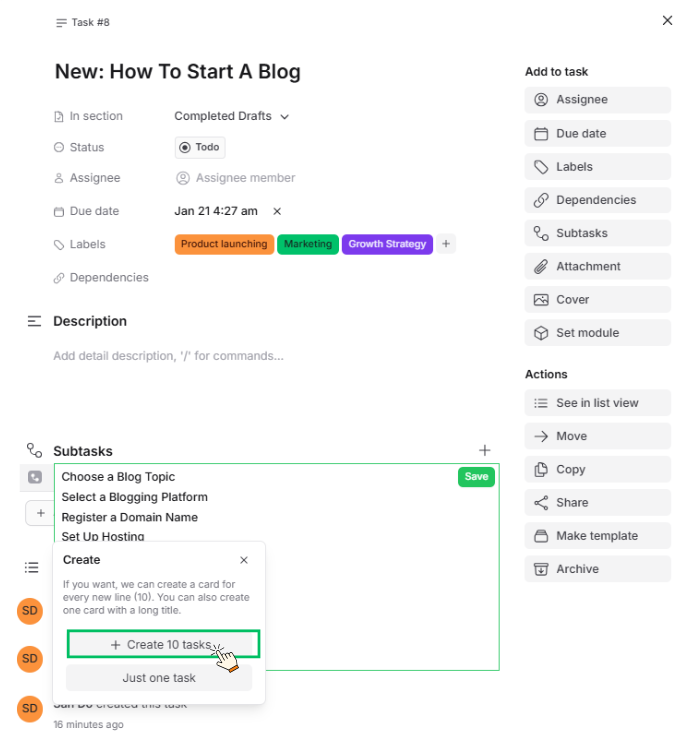
Select create multiple tasks
Alternatively, Leanbase offers a feature to reproduce all checklist items as subtasks in one step, streamlining the process.
Protip: Leanbase provides a link to your original Trello task, displayed in a custom field. Click the link to navigate directly to the task in Trello.
Important Notes
There are some data in Trello will not imported
Archived Cards: Cards archived in Trello will not be imported.
Archived Lists: Archived lists and their cards will not be imported.
Checklists: Trello checklists will not be imported.
Custom Fields: Custom fields from Trello will not be imported.