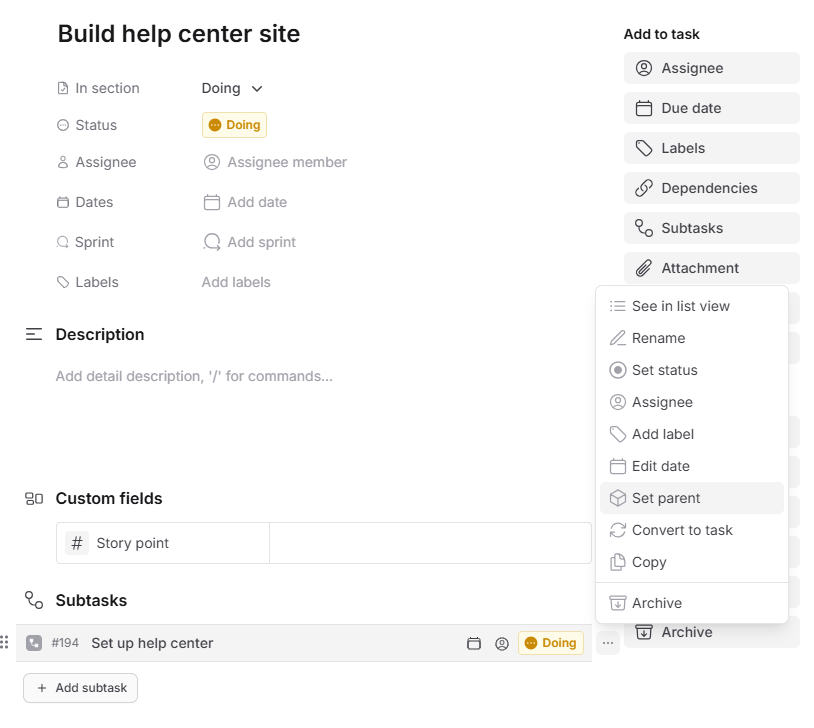
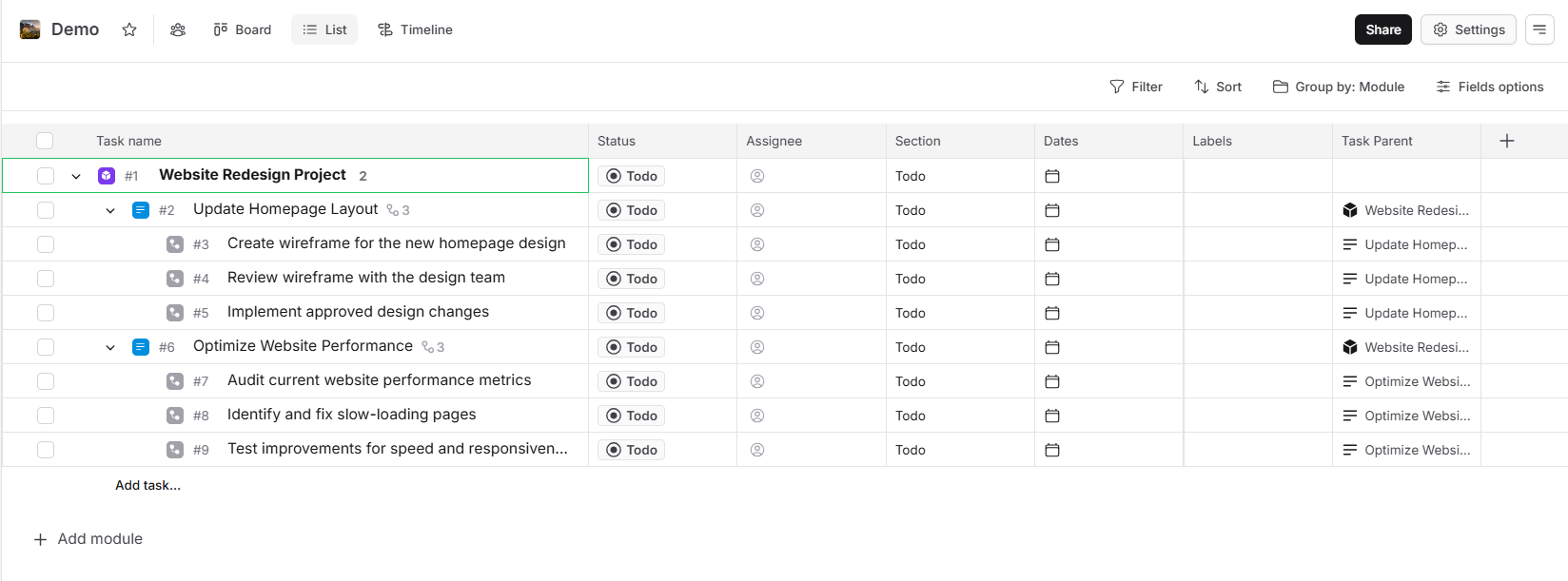
Leanbase's task hierarchy uses a nested structure: Modules contain Tasks, which hold Subtasks. Users can create custom task types for tailored workflows.
3 levels of tasks in Leanbase is:
Module
Tasks
-
Subtasks
Leanbase's task hierarchy uses a nested structure: Modules contain Tasks, which hold Subtasks. Users can create custom task types for tailored workflows.
Module
In Leanbase, a module represents a high-level project or goal, serving as a container for related tasks and subtasks. It helps organize and track progress across broader initiatives.
Tasks
In Leanbase, a task is a single unit of work that includes details like assignees, due dates, and status. It helps teams organize, track progress, and collaborate efficiently.
Subtasks
In Leanbase, subtasks are smaller, actionable steps within a task that help break down complex work into manageable pieces. They ensure clarity and progress toward completing the main task.
How to set up
In Leanbase, subtasks are smaller, actionable steps within a task that help break down complex work into manageable pieces. They ensure clarity and progress toward completing the main task.
Create a module
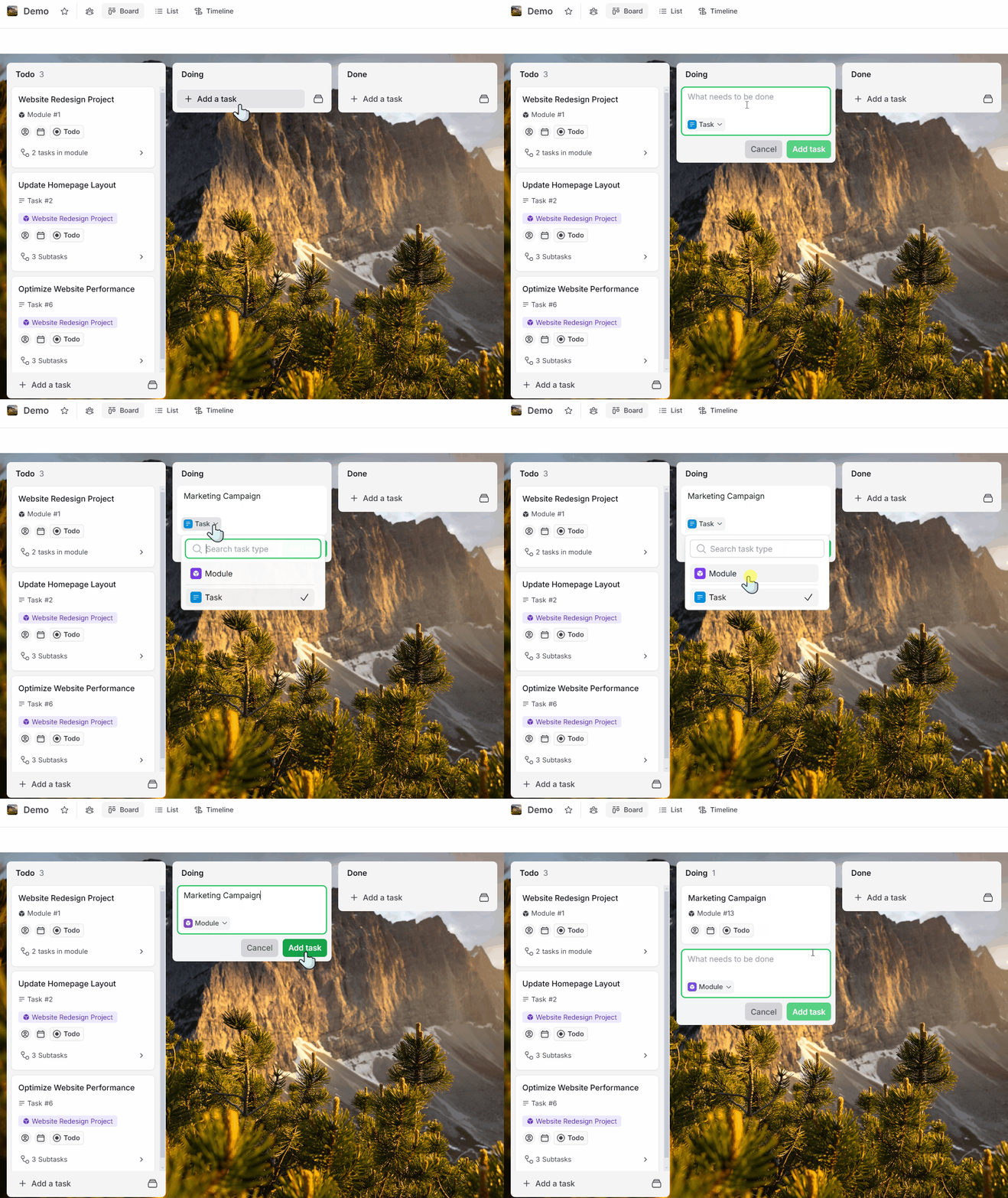
For a module, select Module from the dropdown before naming. To create a module in Leanbase:
Click the Add Task button
Select Module from the task type dropdown
Enter the task name
Click again on the task to open the details page for further editing
Create a task
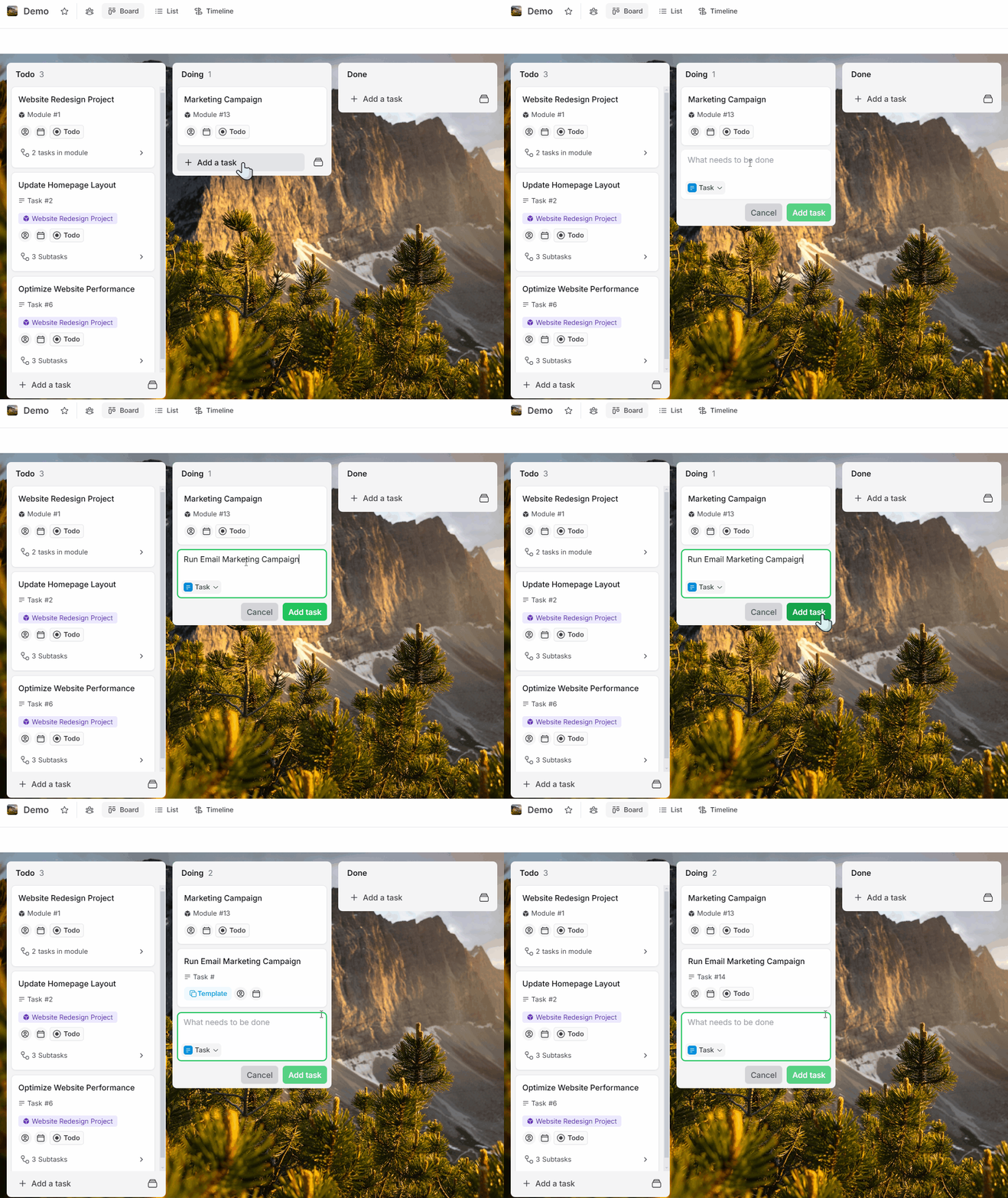
To create a task in Leanbase, simply click Add Task and enter the task name. By default, tasks are created as the standard task type.
Create subtasks
To create subtasks in Leanbase:
Go to the task details and click Add Subtask.
-
Enter a name for the subtask.
You can click on the subtask to open its details and edit additional information.
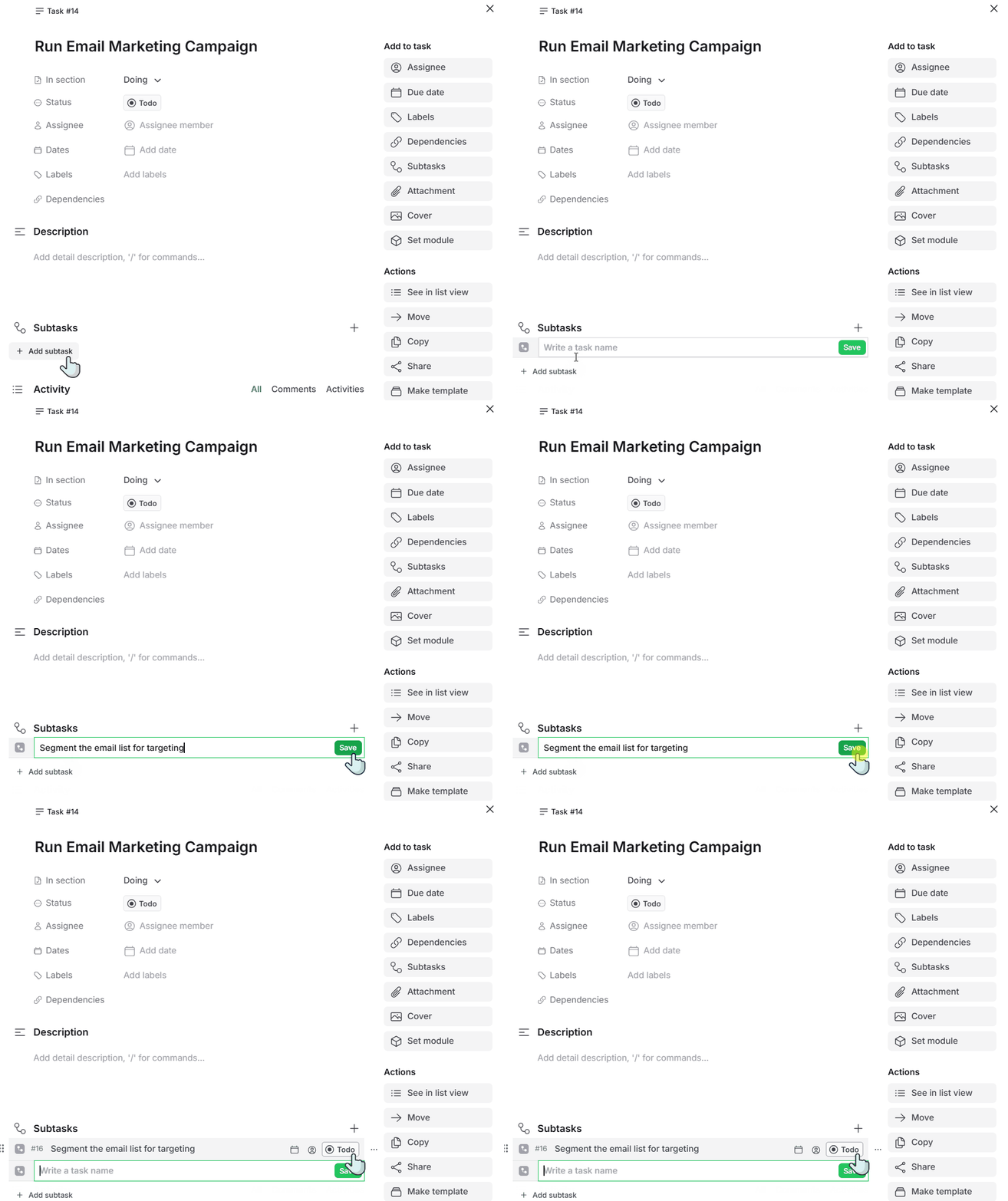
Alternatively, you can open the List View, hover over a task, and click the Plus button that appears. Then, select it to open a new line for adding a subtask.
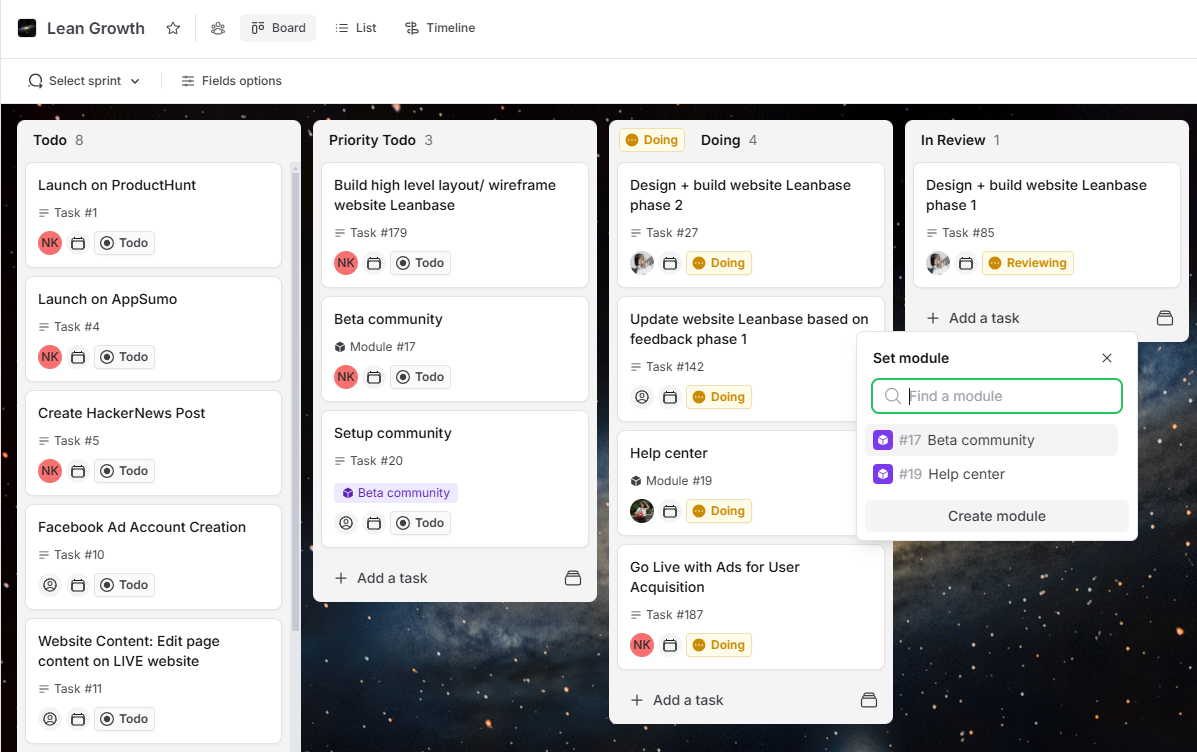
Set module to task
To set a module to a task in Leanbase:
Click the ellipse (more settings) icon on the task or press shortcut key S
-
Select Set Module & choose the desired module
You can change the module later or unlink it to make the task independent.
Change parent tasks of subtasks
To change a parent task for a subtask in Leanbase, click the parent task to view its subtasks. Then, click the ellipse icon to open the settings menu and select Set Parent. From there, you can choose a different parent task or select Unlink Parent to convert the subtask into an independent task.