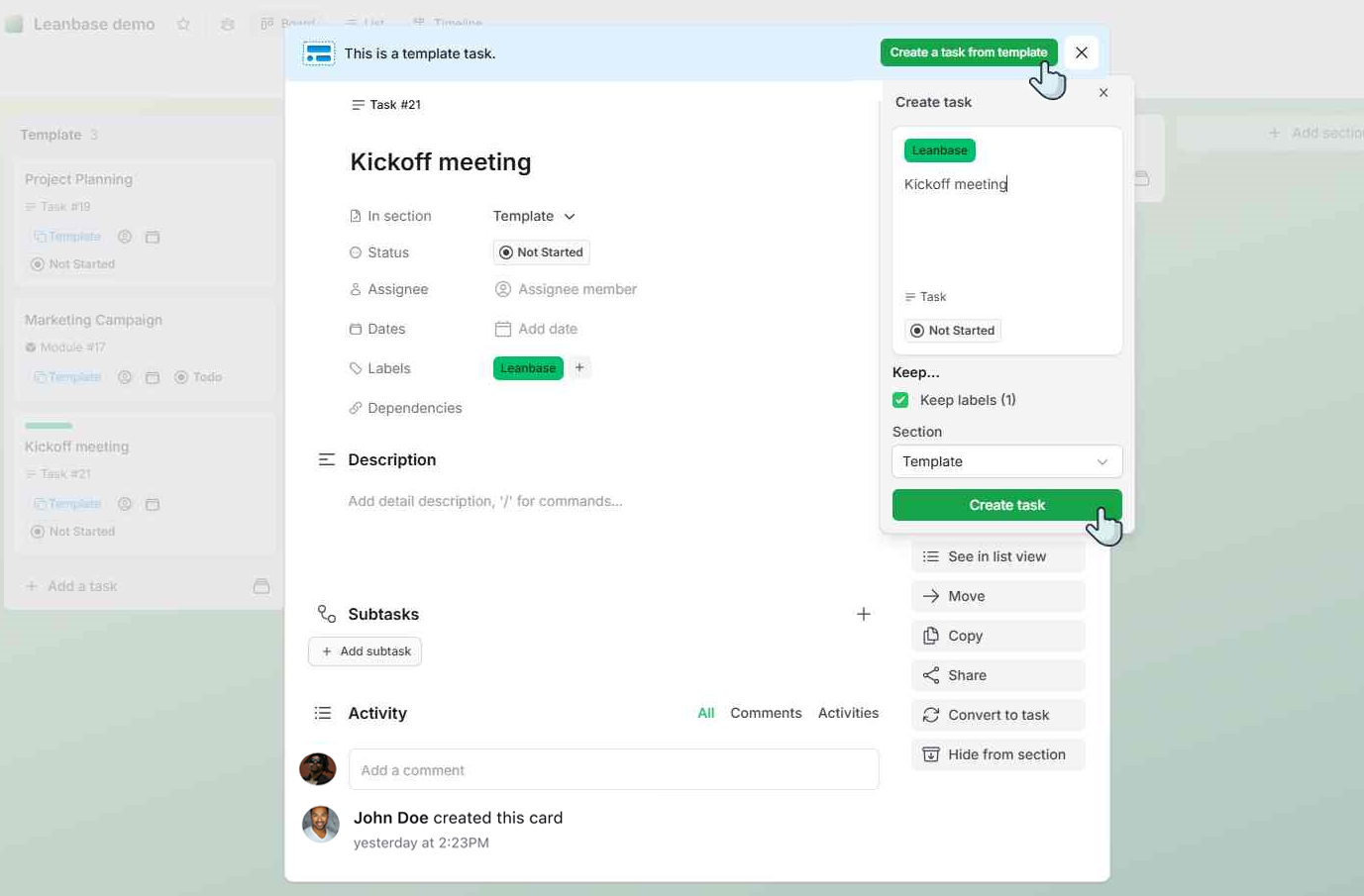
Task template makes task creation easier by enabling reusable templates for common workflows, saving time and ensuring consistency for repetitive tasks and similar projects.
Task templates allow users to:
Predefine task details such as titles, descriptions, custom fields, labels, subtasks, and assignees.
Save time by reusing templates for recurring tasks or workflows.
Standardize task creation to align with team processes.
Easily manage templates in a dedicated library for quick access.
Create blank task template
Follow these steps to create a new task template from scratch:
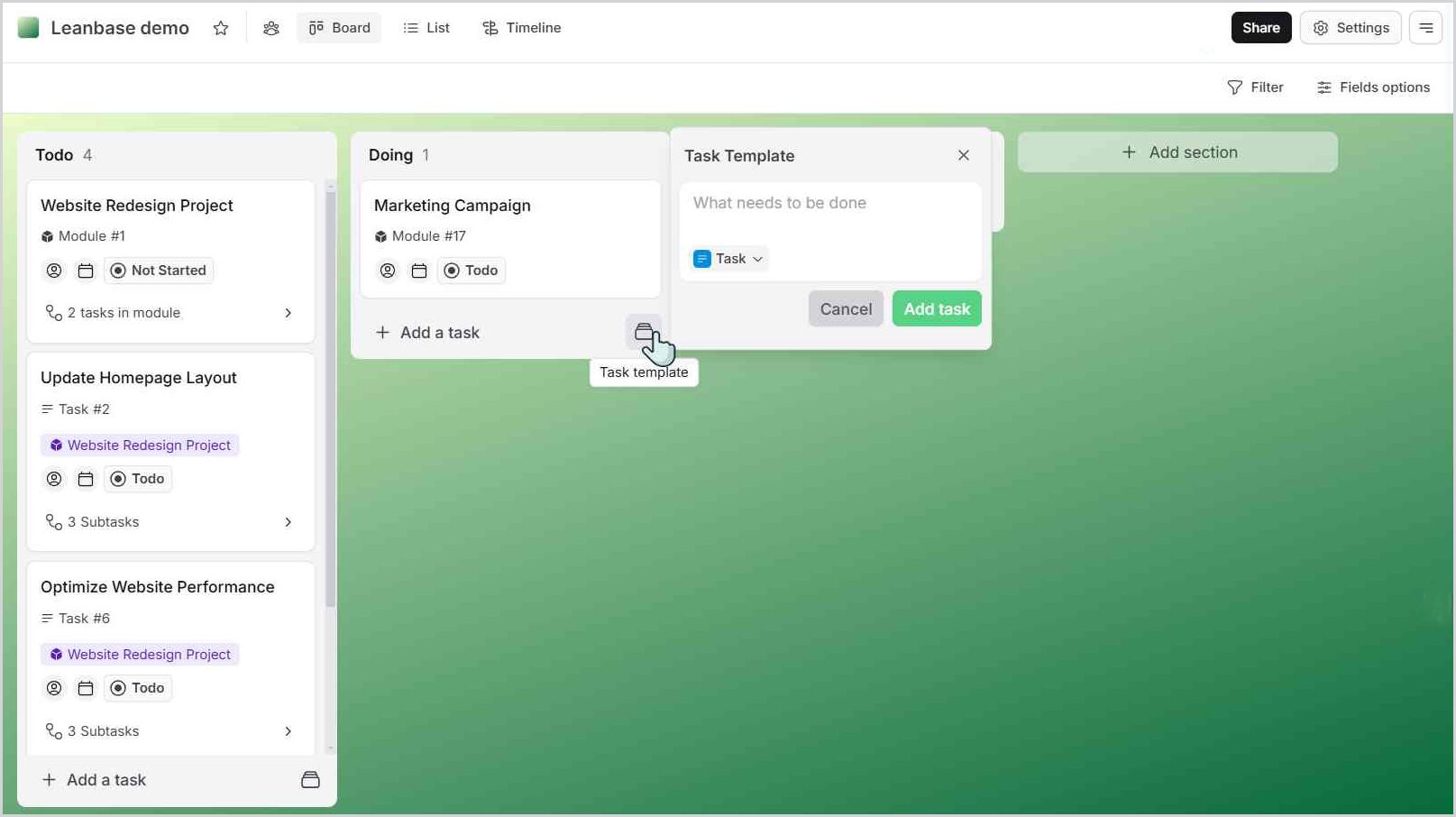
Go to the board where you want to create a task template.
Click on Task template icon.
Enter a Task name (e.g., “Weekly Report”) and select the task type. Click Add task.
Open the newly created task and fill in the necessary details.
Turn a task into template
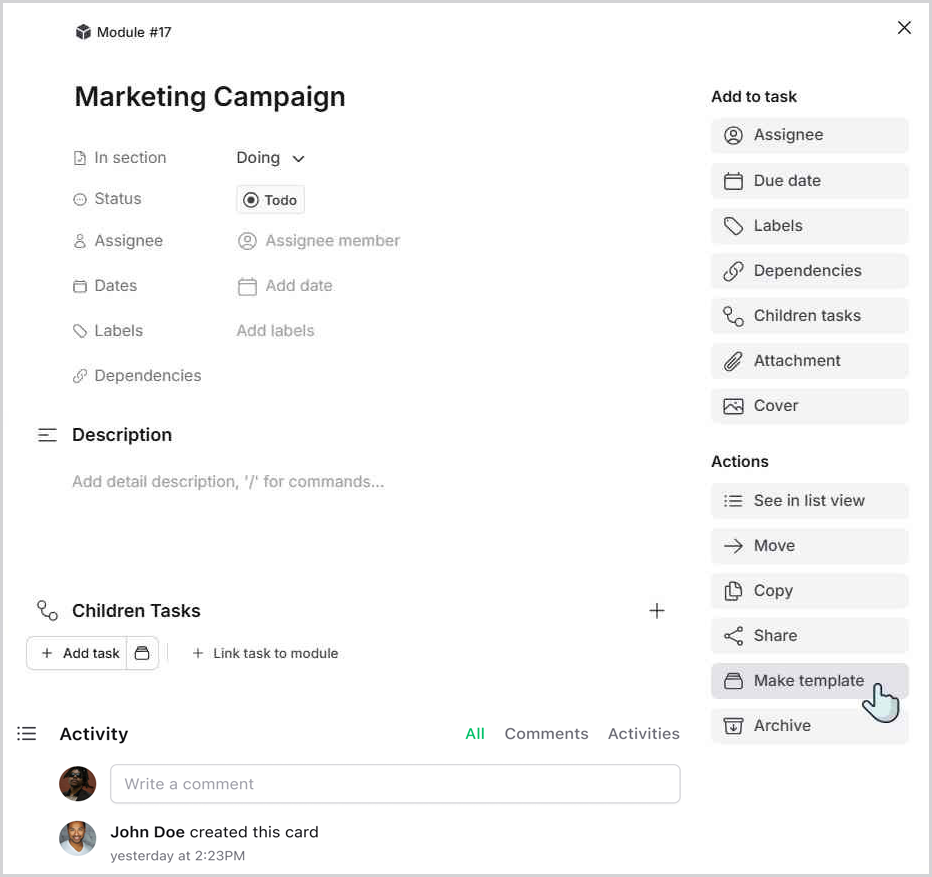
Navigate to the task you want to convert into a template.
In the Actions section of the task, click the Make template button.
Manage task template
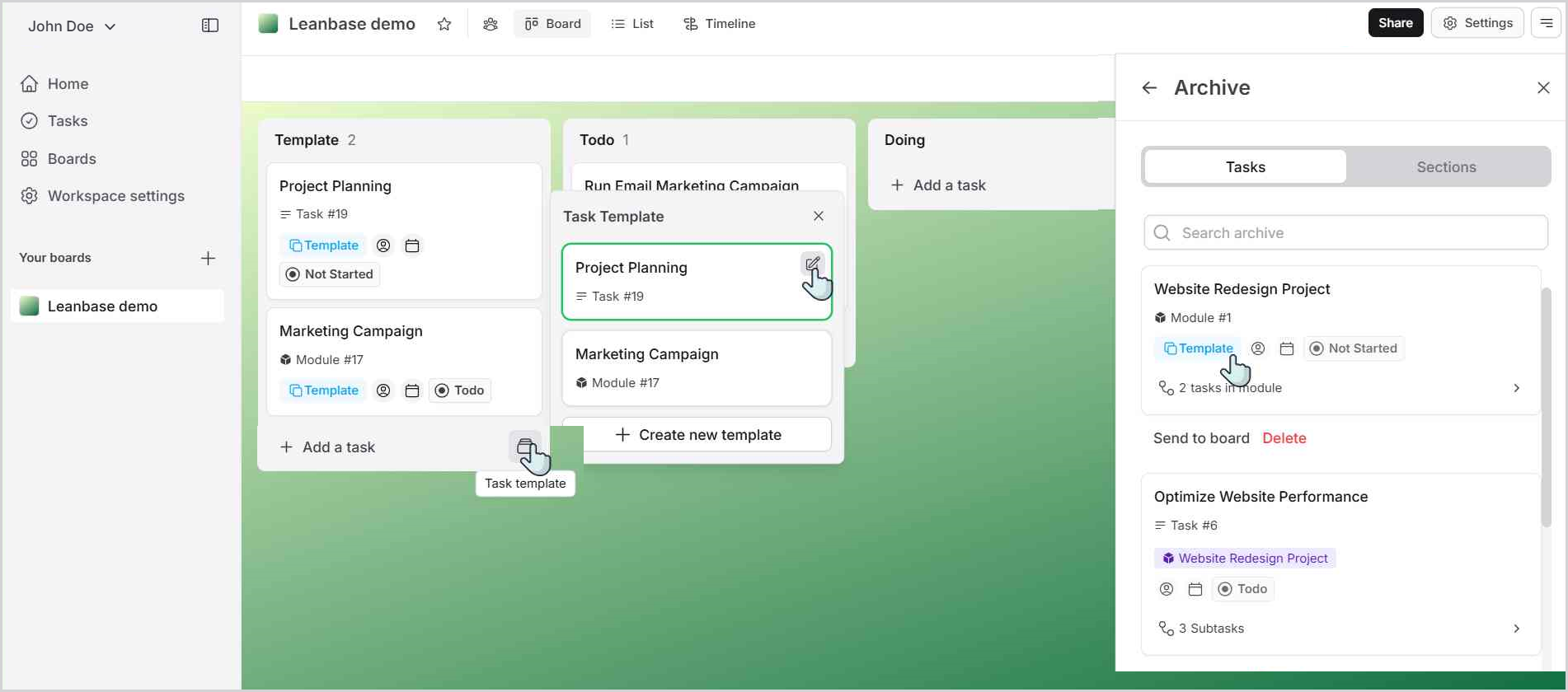
Go to your Board and click on the Task Template icon: A list of all your task templates will appear.
Edit a Task Template: Click on any template from the list to open and edit its details.
Inactive a Task Template: To inactive/archive a task template, press C or click the Archive button in the task details. This will deactivate the template.
Restore an Archived Template: Archived templates will be stored in the Archive List with the label "Template.” You can restore any archived template whenever needed.
Create tasks from a task template
Navigate to the task template you want to use.
Click on Create a Task from Template.
Customize the Task: Rename the task, update relevant details, and decide which information to keep from the template.
Add the Task to the Board: Once finalized, click Create Task. The new task will be added to the board with the template details pre-filled.