The Task Explorer in Leanbase streamlines task management and enhances collaboration. It allows users to focus on their tasks, view others' assignments, and manage workflows efficiently, with role-based permissions controlling task visibility.
Task explorer in Leanbase
The Task Explorer is your centralized hub for tracking and managing tasks. It provides a clear overview of your responsibilities and those of your team members. Key features include:
Personalized task view: Focus on tasks assigned to you.
Team task visibility: Switch to member tabs or search for specific individuals to view their tasks.
View members’ tasks
Open the Tasks section.
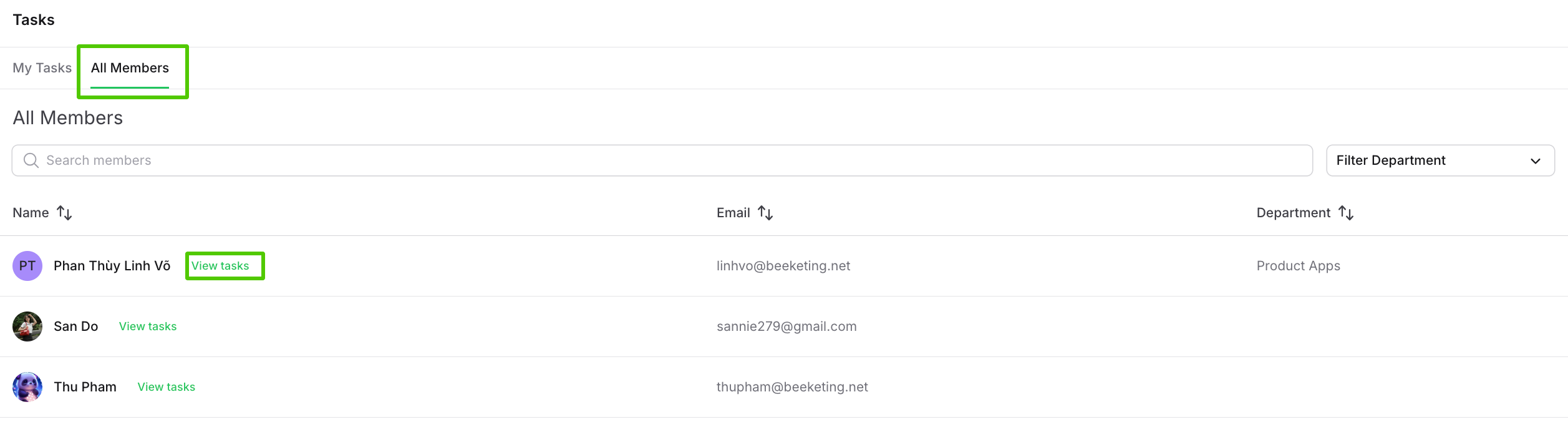
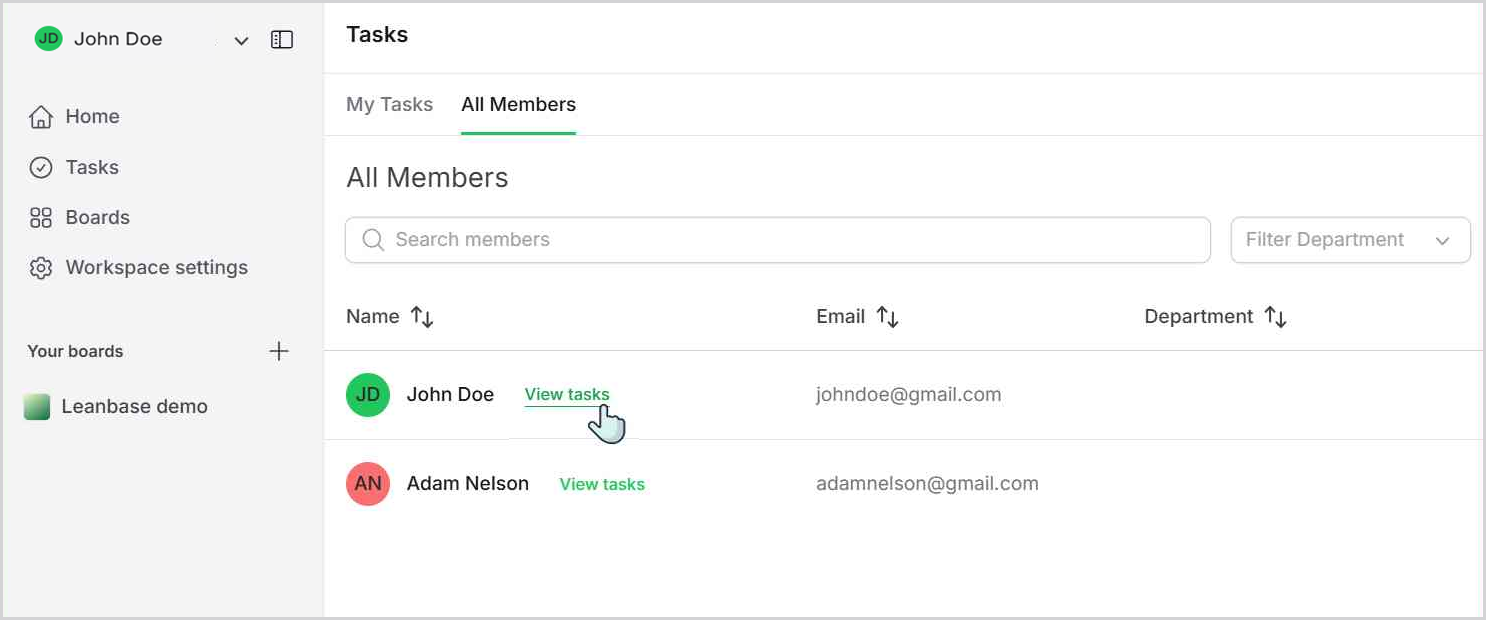
Navigate to All Members to see all tasks of a specific member.
Click on View Task next to a member’s name to view their assigned tasks.
Assign task for members quickly
Switch to the All Member tab.
Search for the desired member.
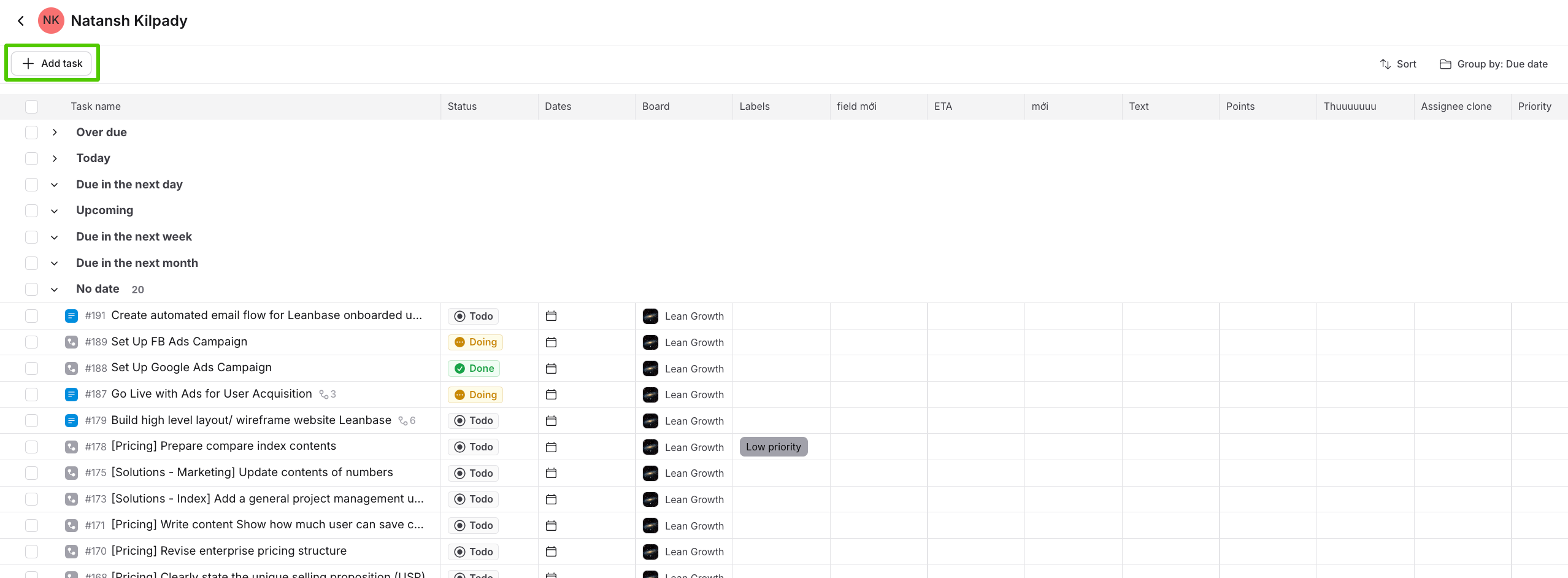
Click the Add Task button.
Type the task name.
Press Enter to save the task.