Sprints in Leanbase help teams plan, track, and complete tasks efficiently within a set timeframe. With features like flexible task views and detailed reports, Leanbase streamlines sprint management and performance tracking.
Leanbase offers essential tools for effective sprint management:
-
Flexible task views:
View tasks in a single sprint to focus on current work.
See tasks across all sprints for broader planning.
-
Sprint reports:
Track metrics like completed tasks and velocity.
Export report as PDF for retrospectives
Create sprint
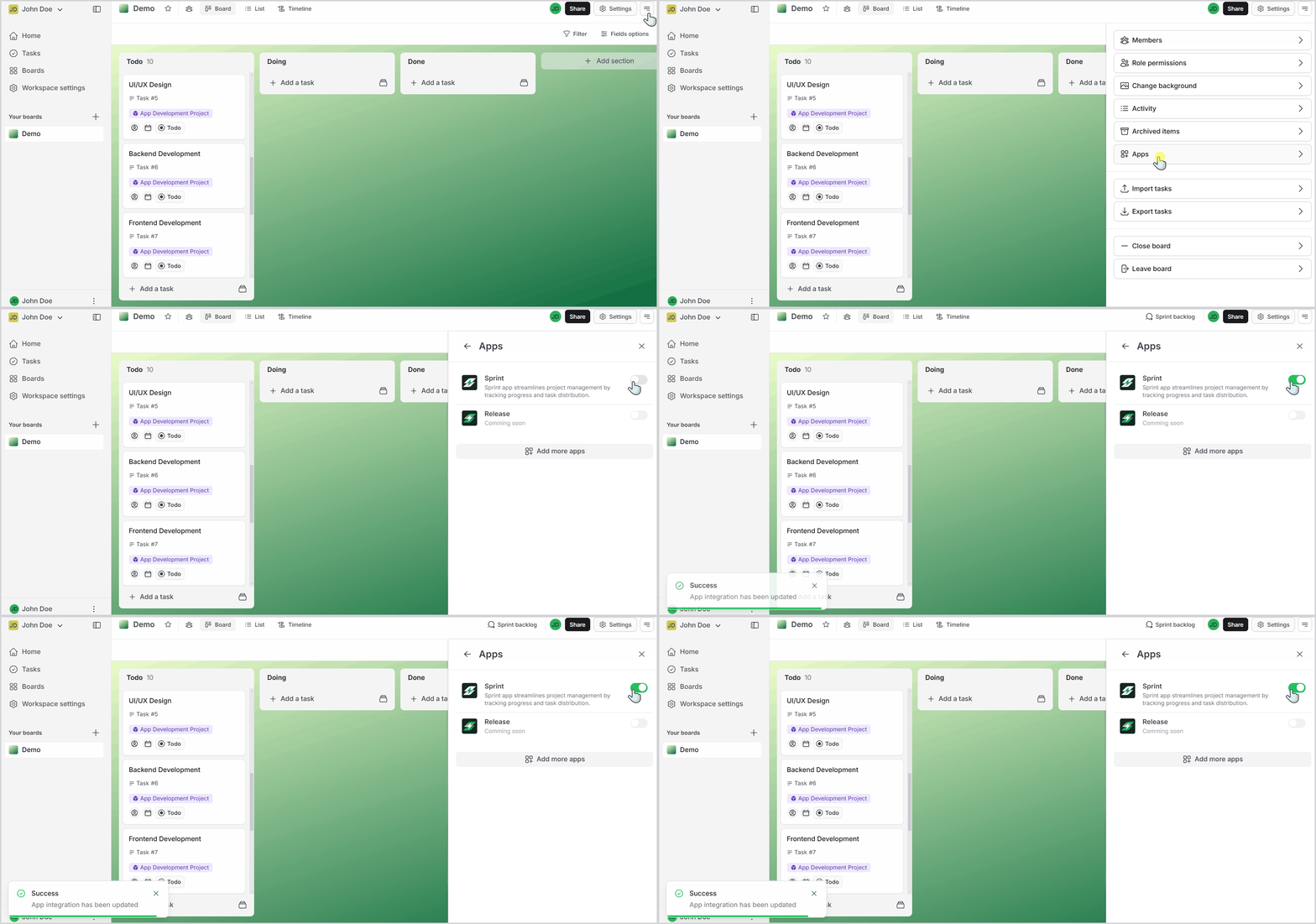
Access the hamburger menu at the top right, select App, and toggle on Sprint.
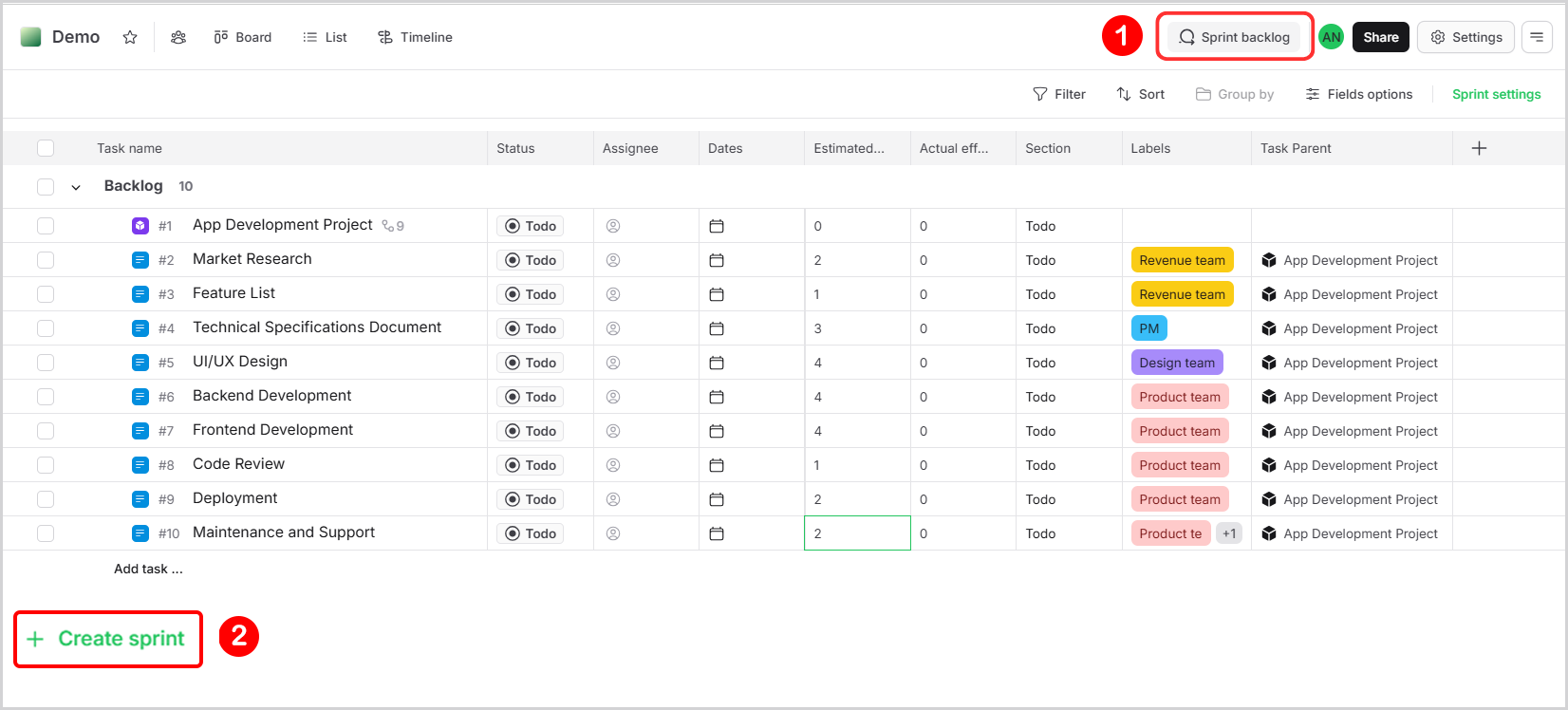
Navigate to the Sprints backlog.
Click the Create sprint button.
-
Fill in the required details:
Sprint name: Assign a unique name for easy identification.
Effort measurement: Choose between Sprint Points and Hours.
Sprint duration: Specify the time per sprint point
Start Time, End Time: Define the sprint’s start and end dates.
Sprint Description: Outline the objectives to provide clarity for the team.
Click Create Sprint to finalize the sprint creation.
Add tasks to sprints
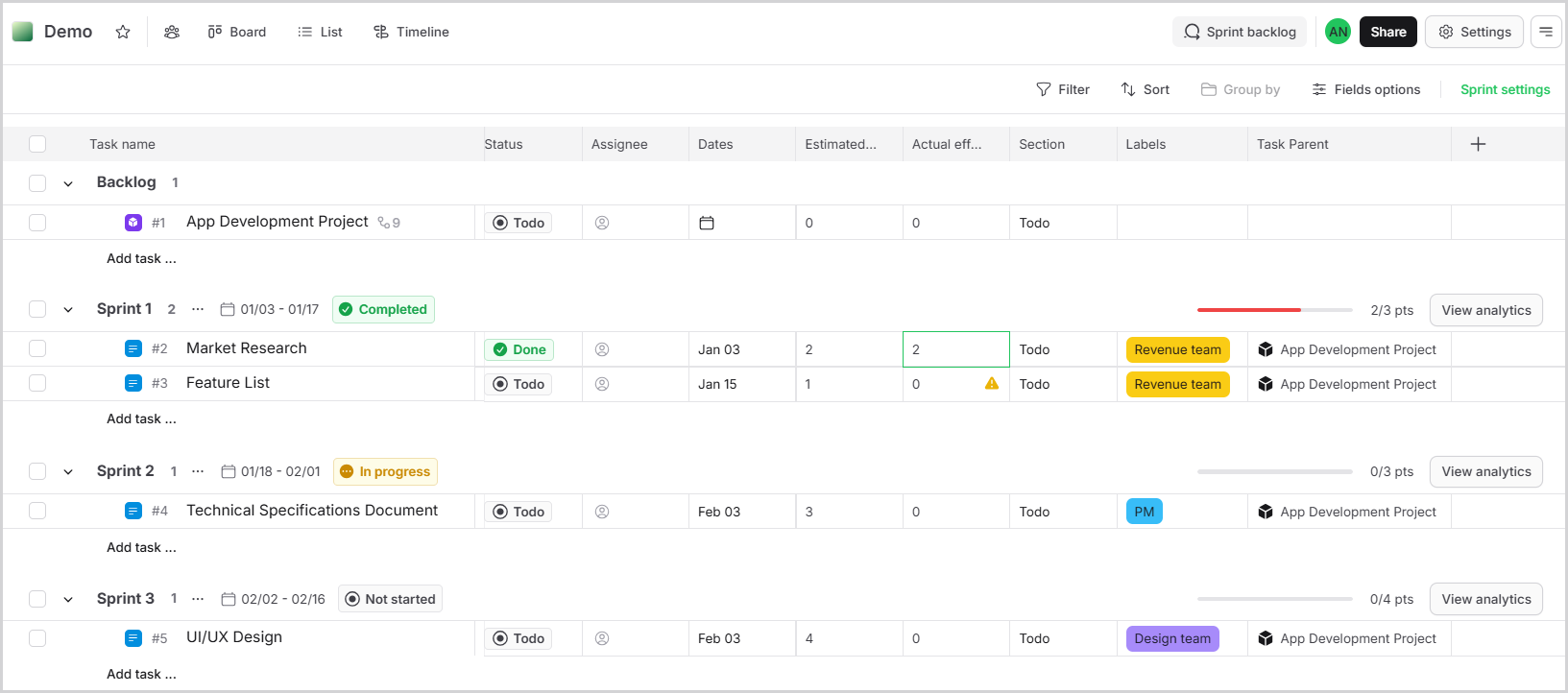
Add tasks: Drag and drop tasks from the backlog or create new tasks directly in the sprint.
Edit sprint details: Modify sprint name, start date/end date, or description as necessary.
Track progress: Use real-time updates and visual dashboards to monitor task completion and team performance.
Move tasks between sprints: Reassign tasks to different sprints with a simple drag-and-drop action.
Sprint analytics: Review performance data by clicking the View analytics button.
Delete sprint
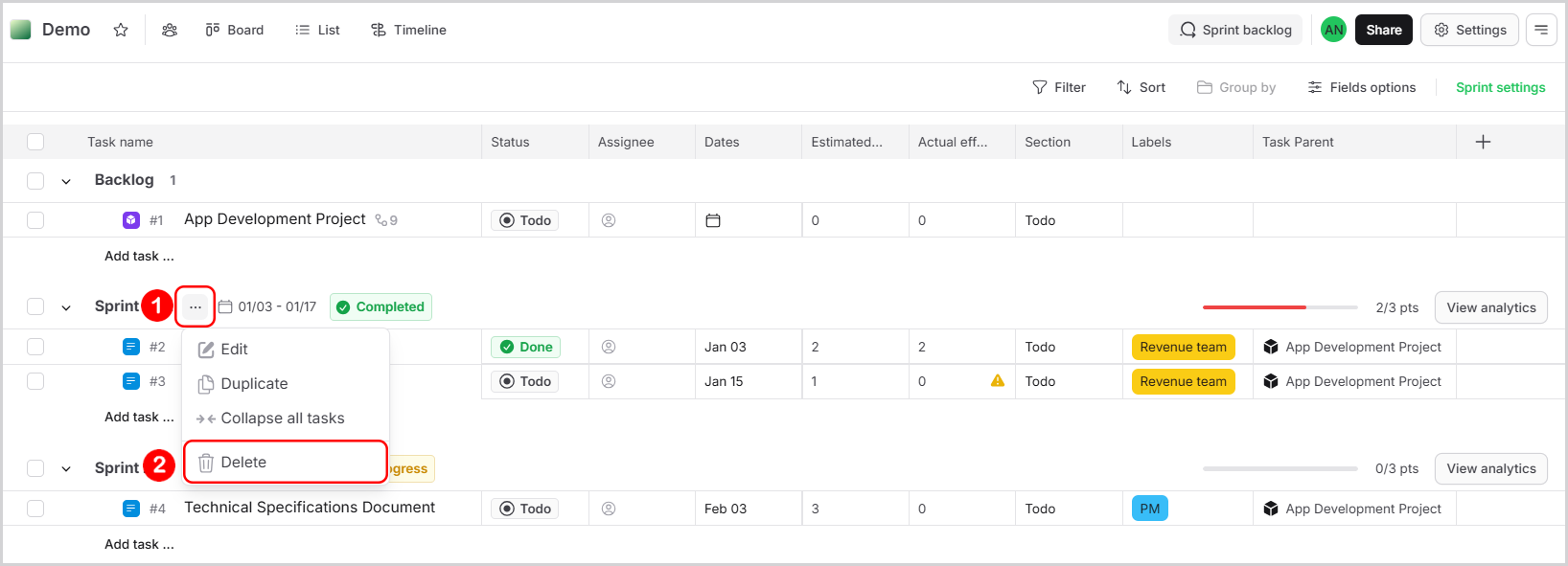
Open the Sprints backlog.
Click on the three-dot menu next to the sprint you want to delete.
Click the Delete button.
Confirm your action in the popup warning.