Leanbase Compass turns fragmented feedback and customer issues into clear, actionable insights — helping your team move faster, make better decisions, and continuously improve your product.
1. Consolidate all Customer Feedbacks in one place
A unified hub streamlines communication and improves visibility.
Step 1: Go to the “Channels” tab.
Step 2: Click “Connect Channel” to begin setup.
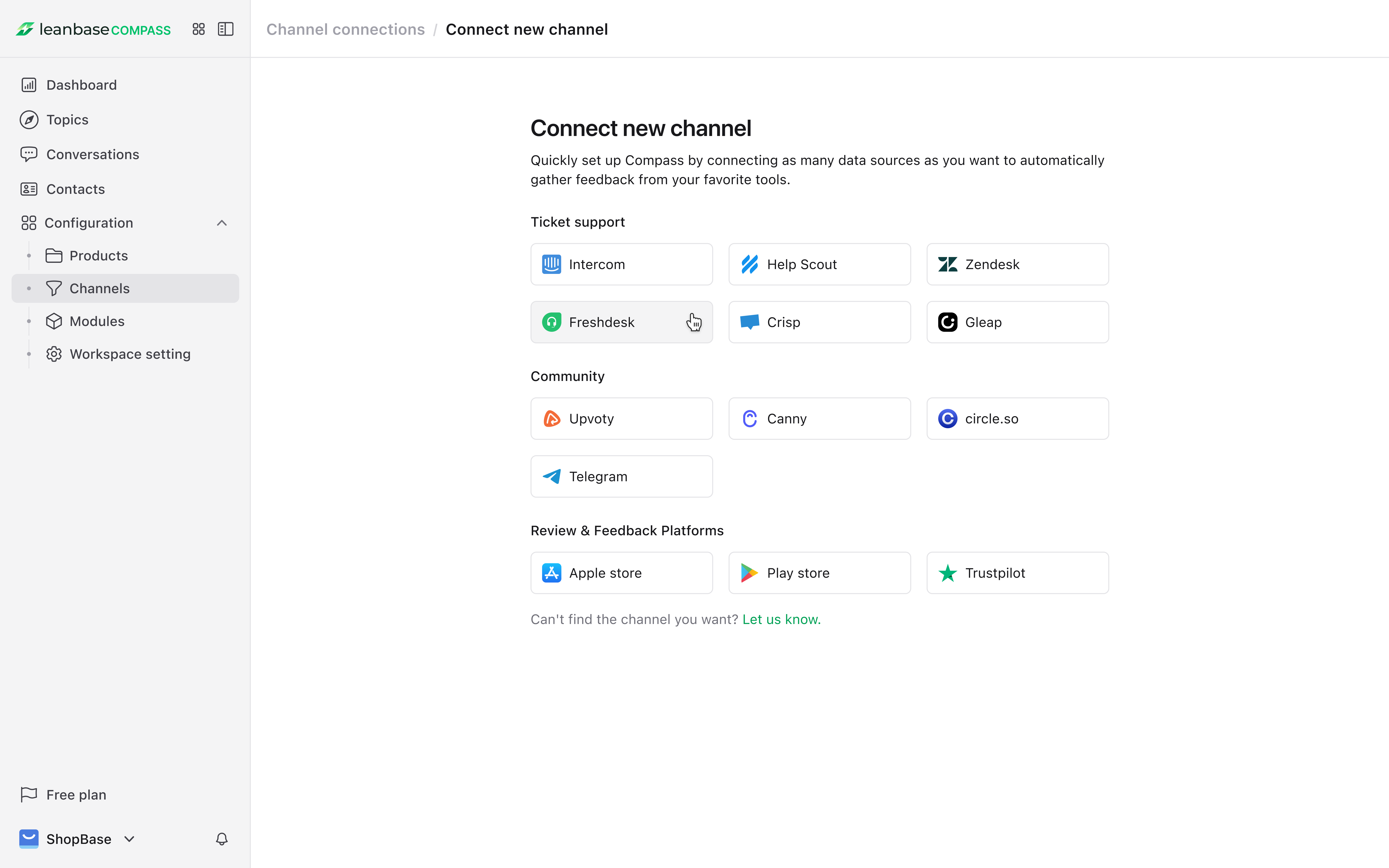
Step 3: Select and connect channels (e.g., freshdesk, crisp, zendesk) through the “Channels” menu in Settings.
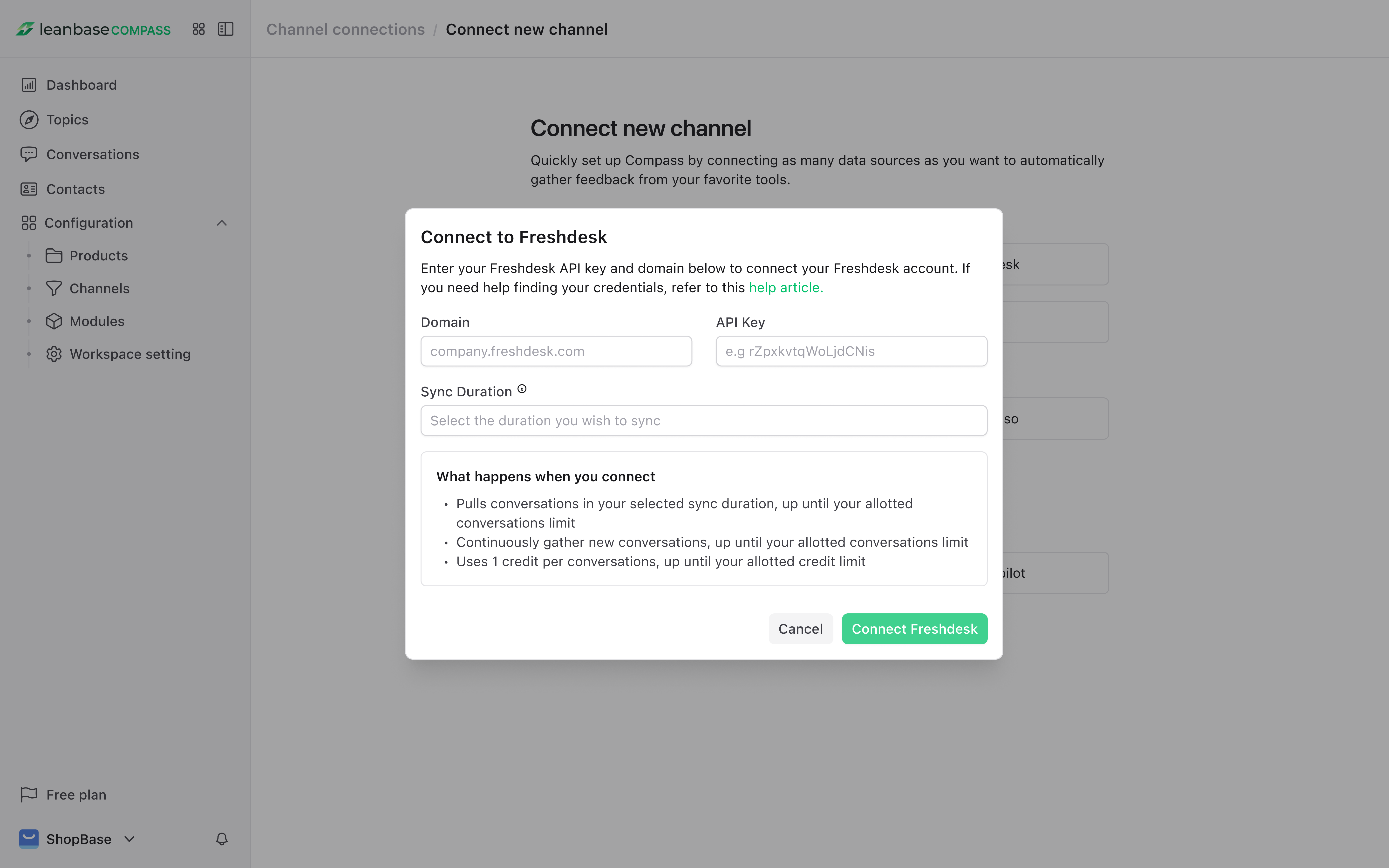
Step 4: Wait for syncing to complete.
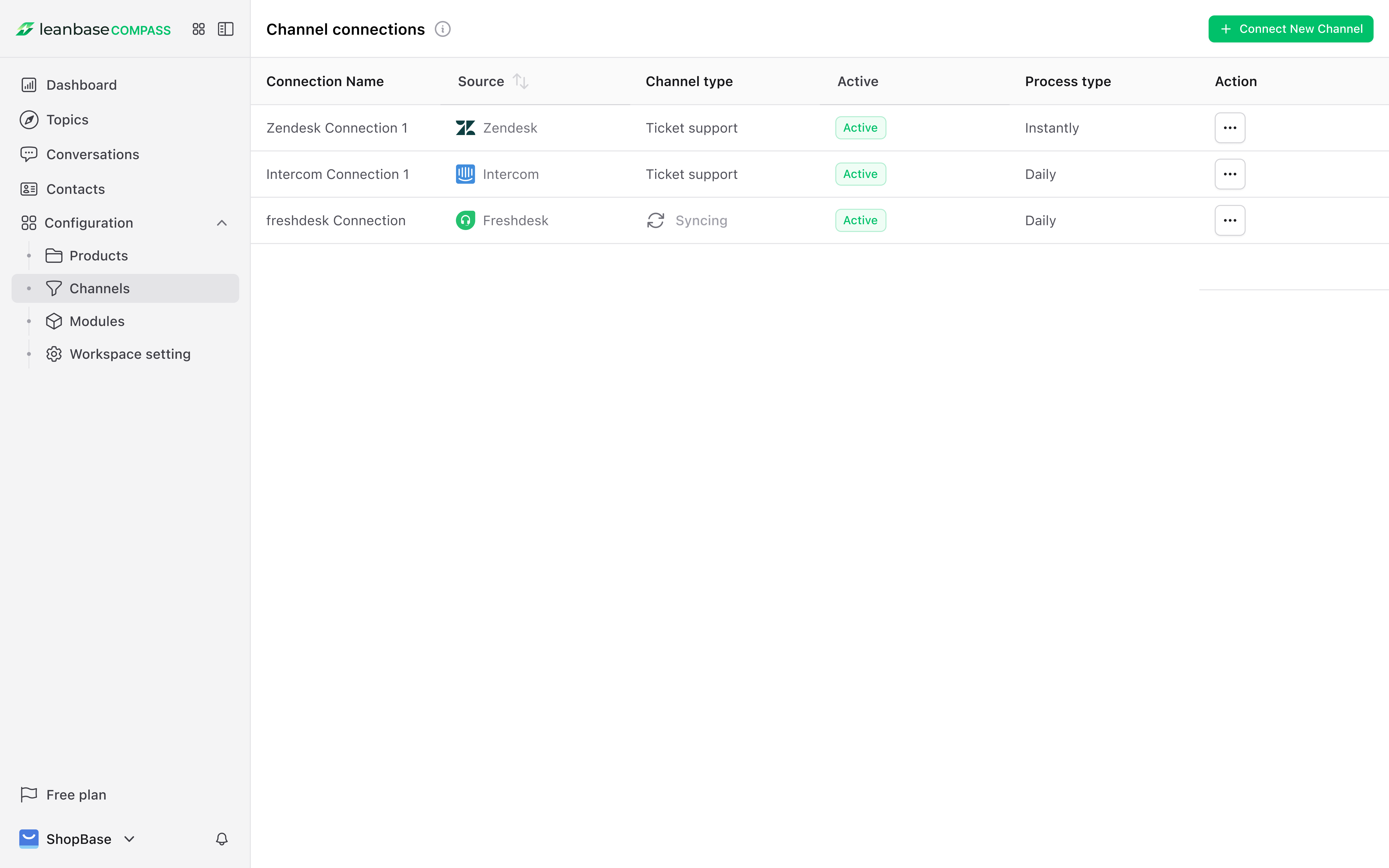
Scaling Tip: As your team grows, integrate additional channels to maintain a single hub for all interactions.
2. Leverage AI-Driven Insights to build features that customers love
Leverage AI with human refinement for accurate, actionable insights:
Step 1: Go to the “Topics” tab to view AI-generated insights from connected channels.
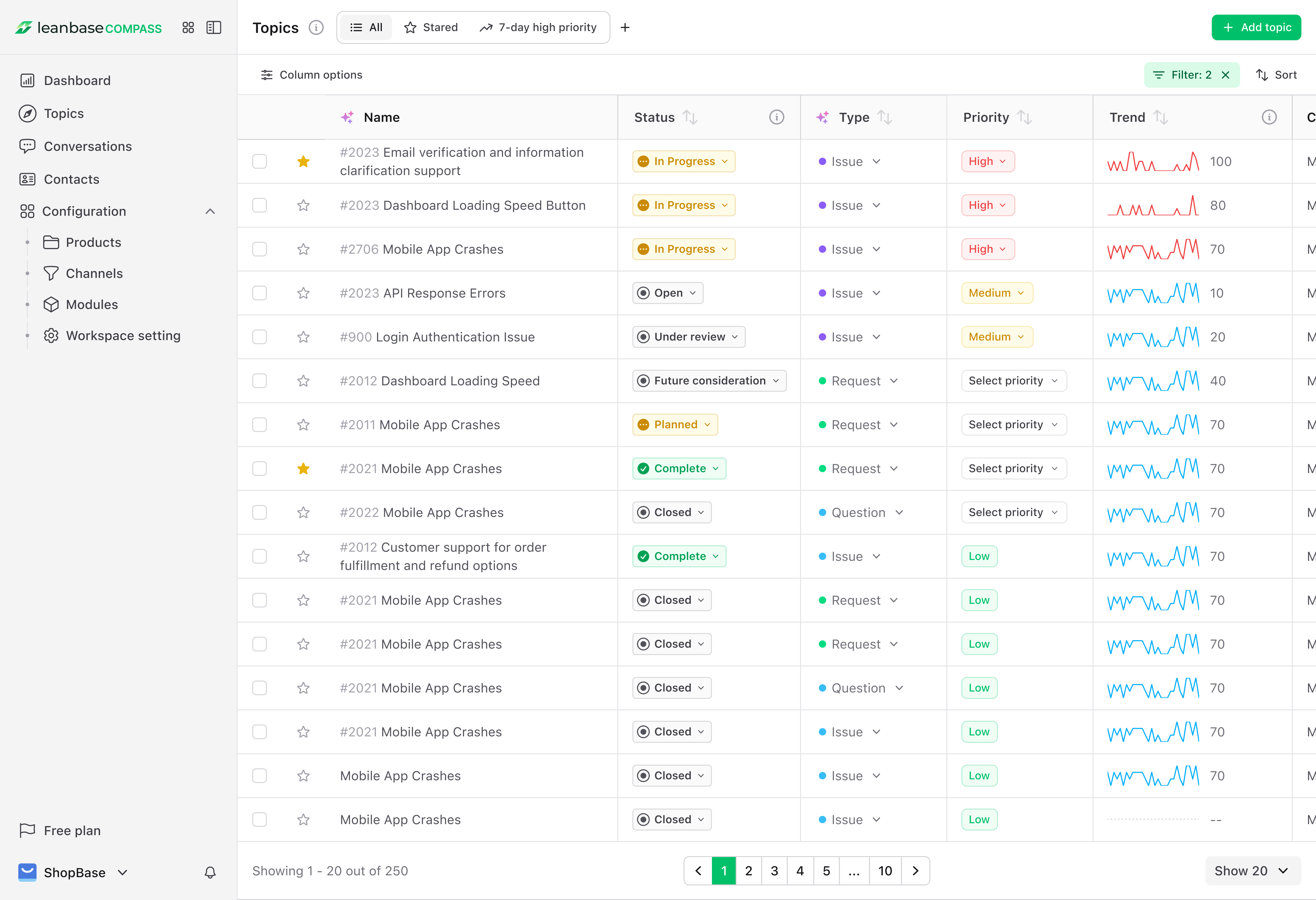
Step 2: Set topic status (e.g., Open, Under Review) and priority (e.g., Critical, High) to align with goals.
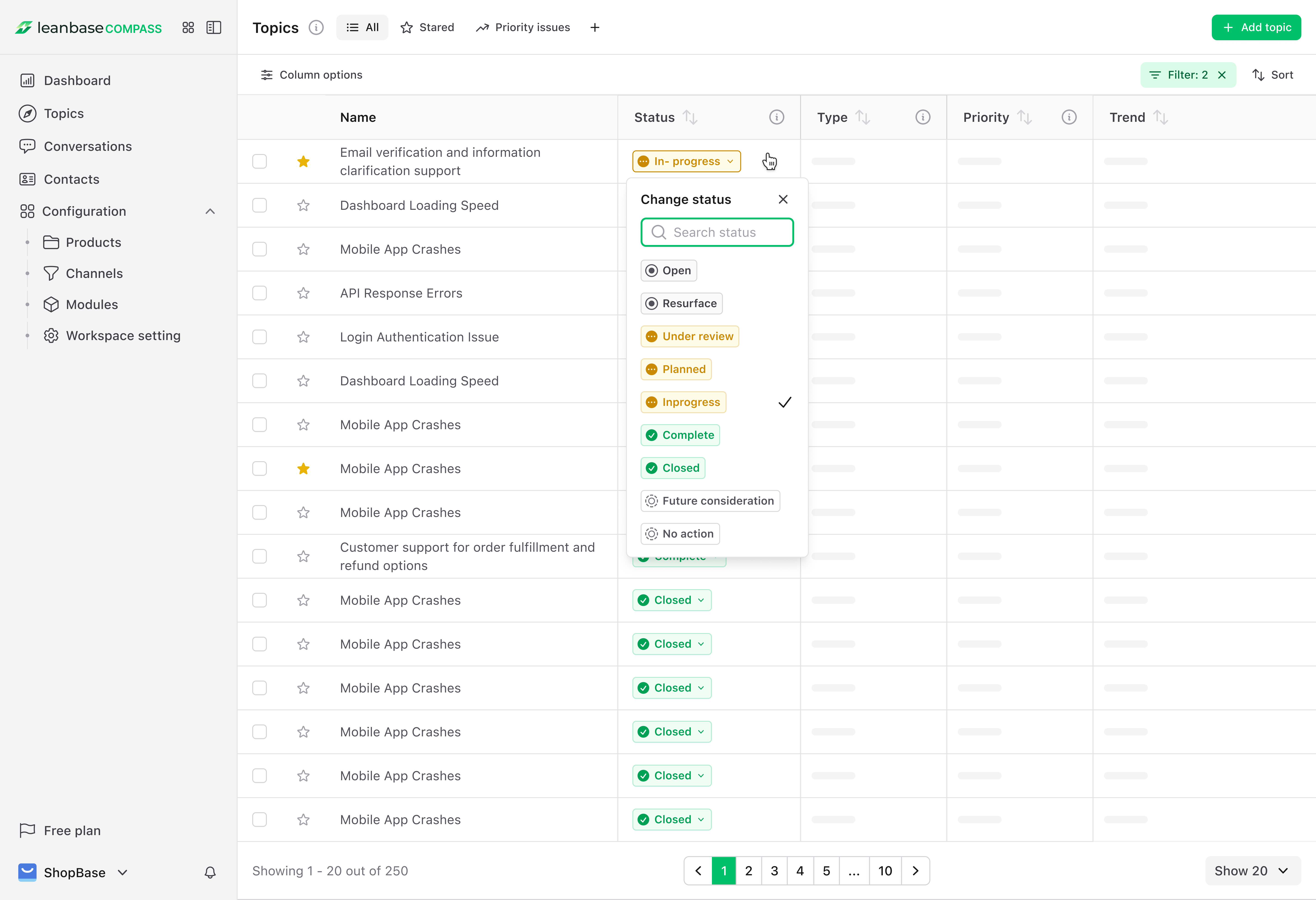
Step 3: Review topic details to identify root causes and explore AI-suggested solutions.
Step 4: Monitor progress within each topic.
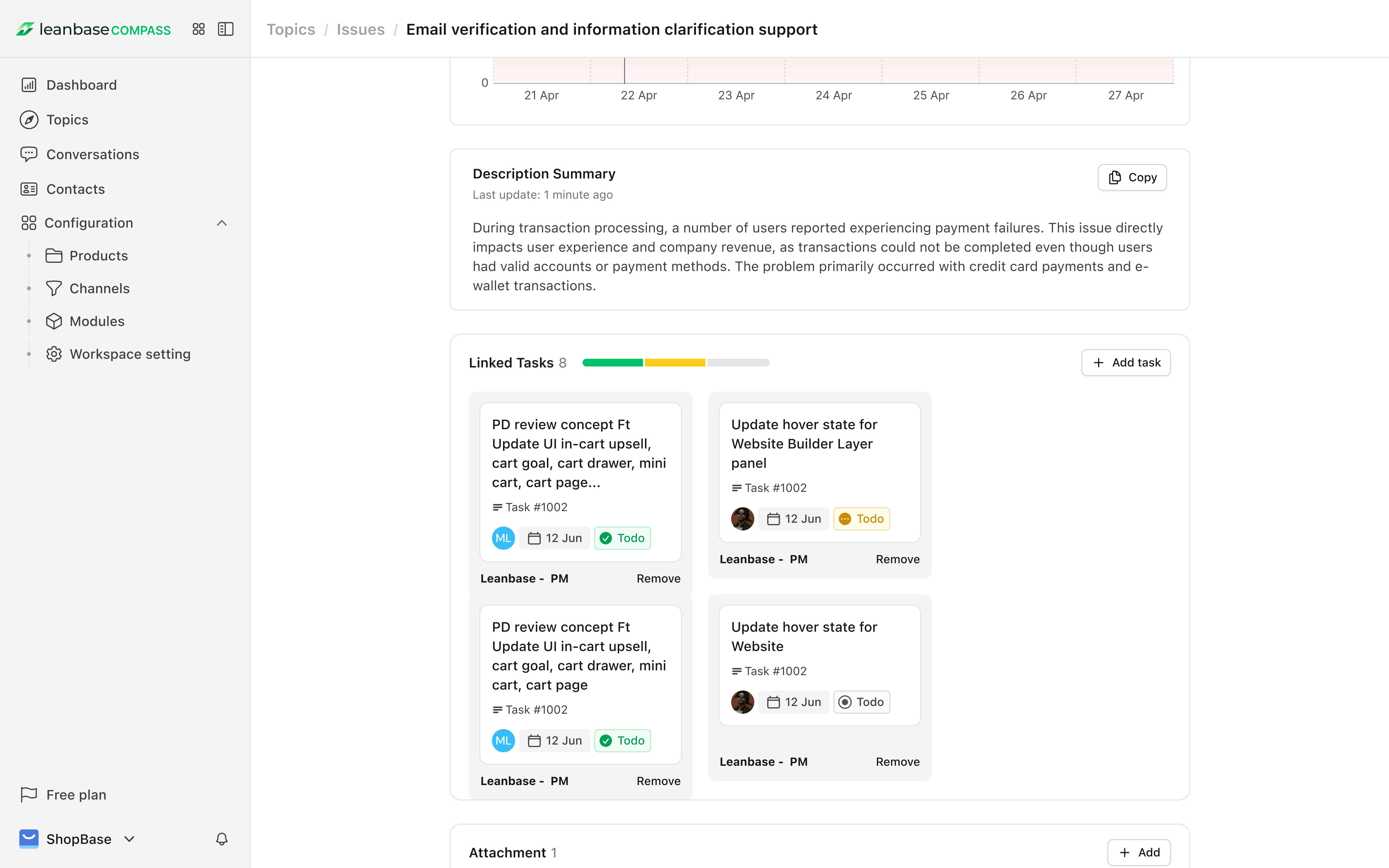
Scaling Tip: Regularly review insights to identify recurring issues, enabling proactive solutions as customer volume increases.
3. Organize better with Modules
Group related topics for better management, simplifies tracking and reporting.
Step 1: Navigate to the “Modules” section in Leanbase Compass.
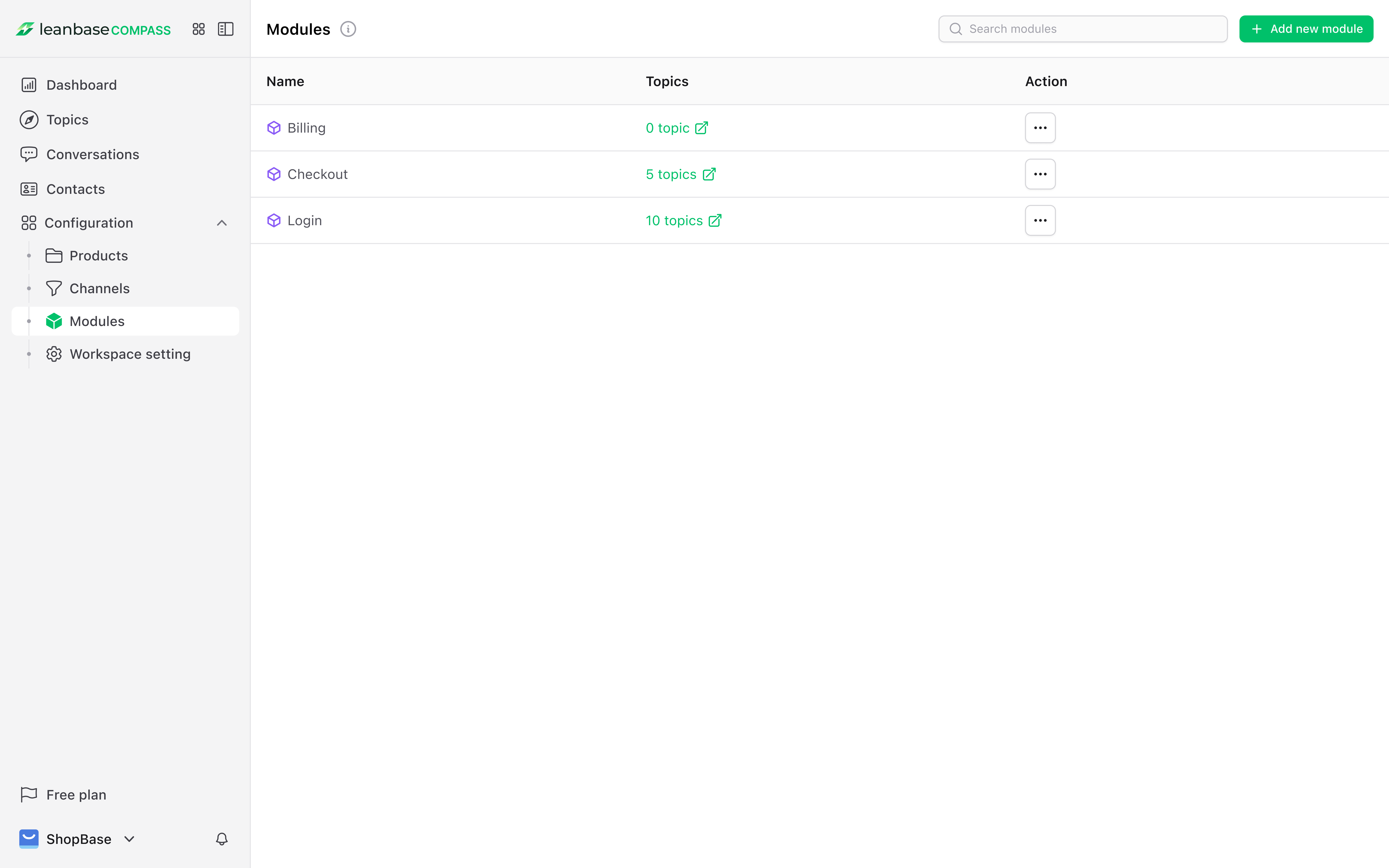
Step 2: Create a custom module (e.g., “Customer Feedback” for topics like “Product Issues” and “Feature Requests”).
Step 3: Use AI-suggested groupings or manually edit topics within the module.
Step 4: View topics filtered by the module to focus on related insights.
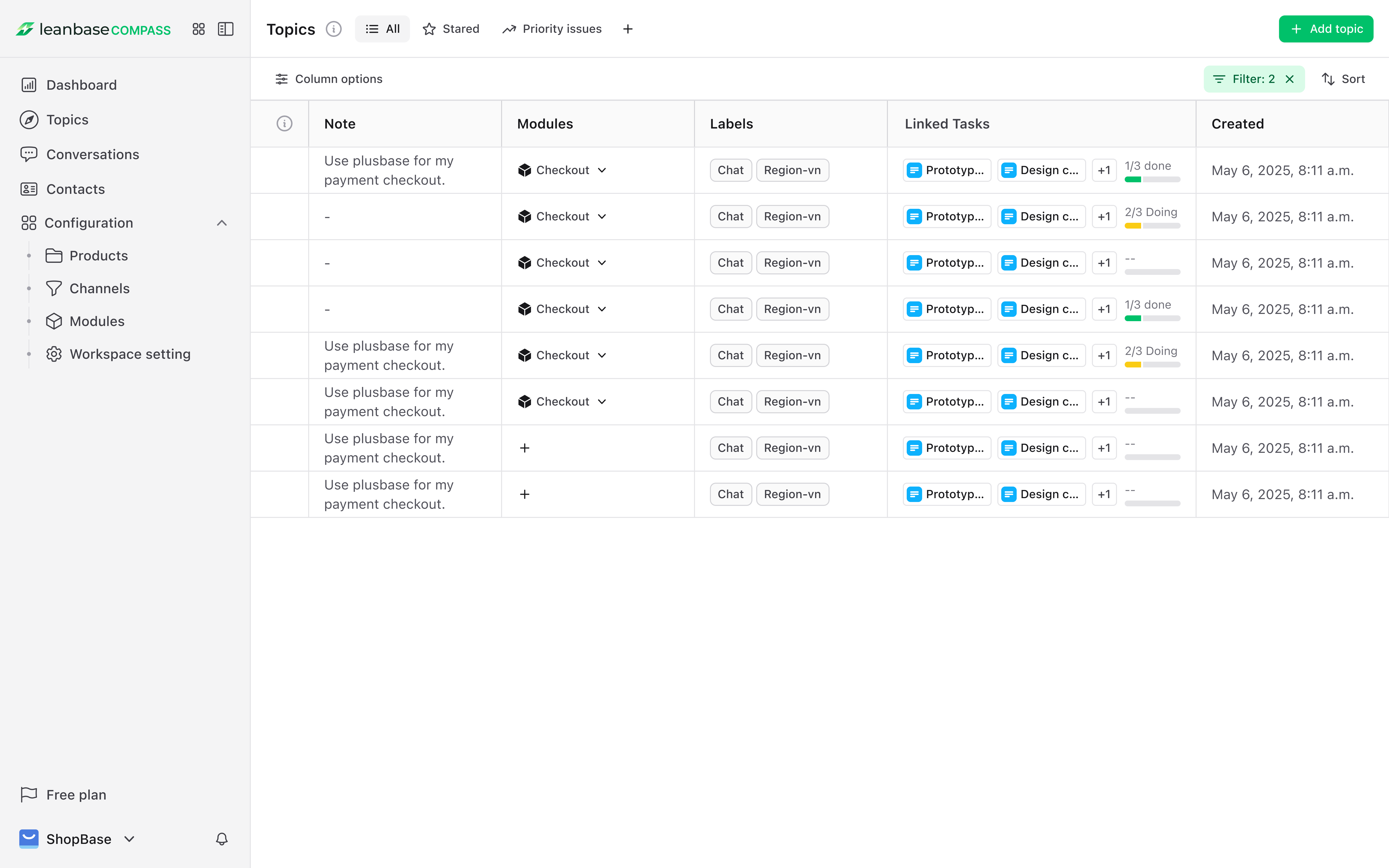
Step 5: Update or delete the module as needed to reflect changing priorities.
Scaling Tip: Create new modules for emerging trends as your business expands to maintain clarity.
4. Track Trends and Patterns to anticipate needs
Trend data helps prioritize high-impact issues.
Step 1: Go to the Home Dashboard to view conversation volume trends over time.
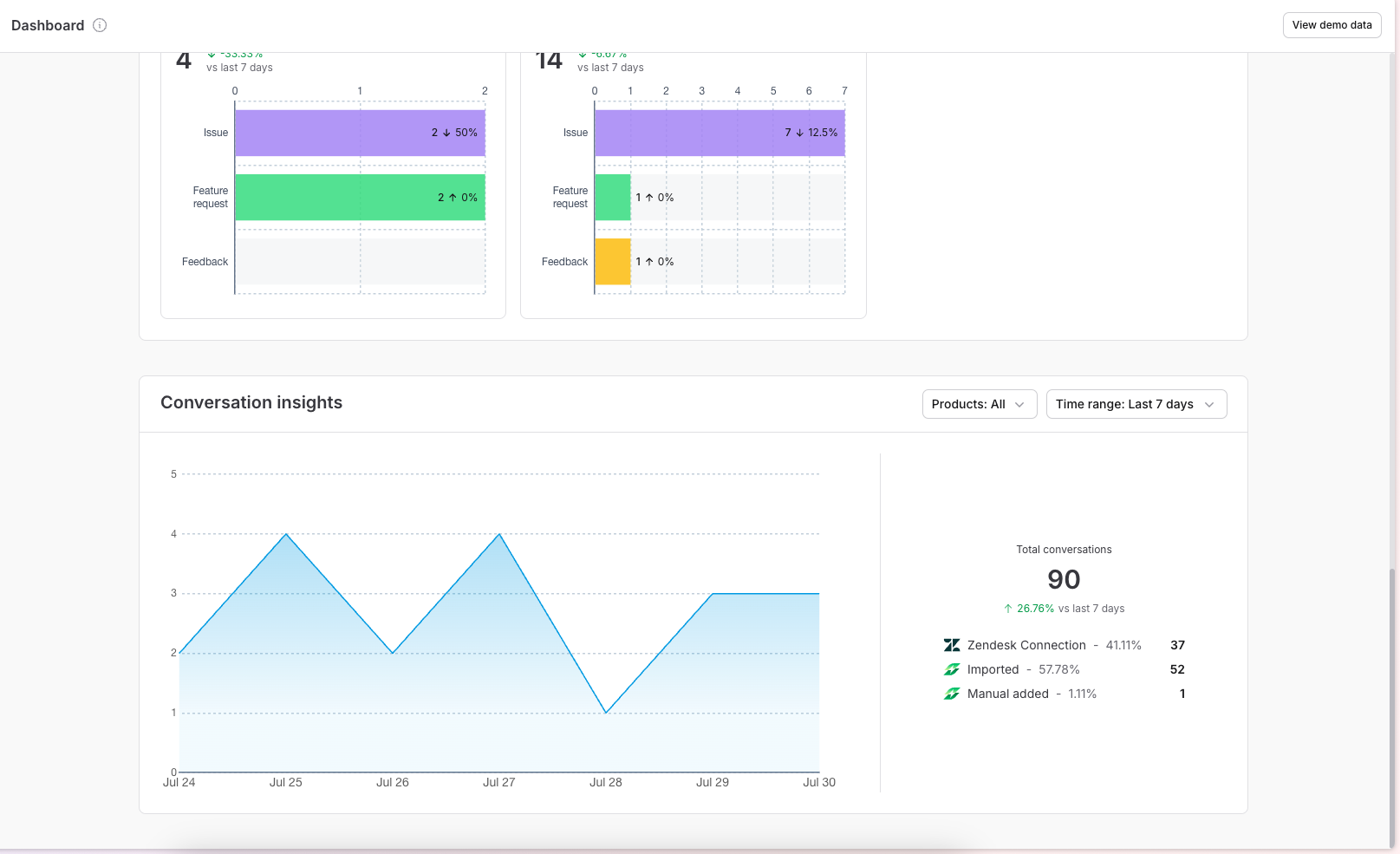
Step 2: Navigate to the “Topics” tab and click topic names for detailed trend analysis.
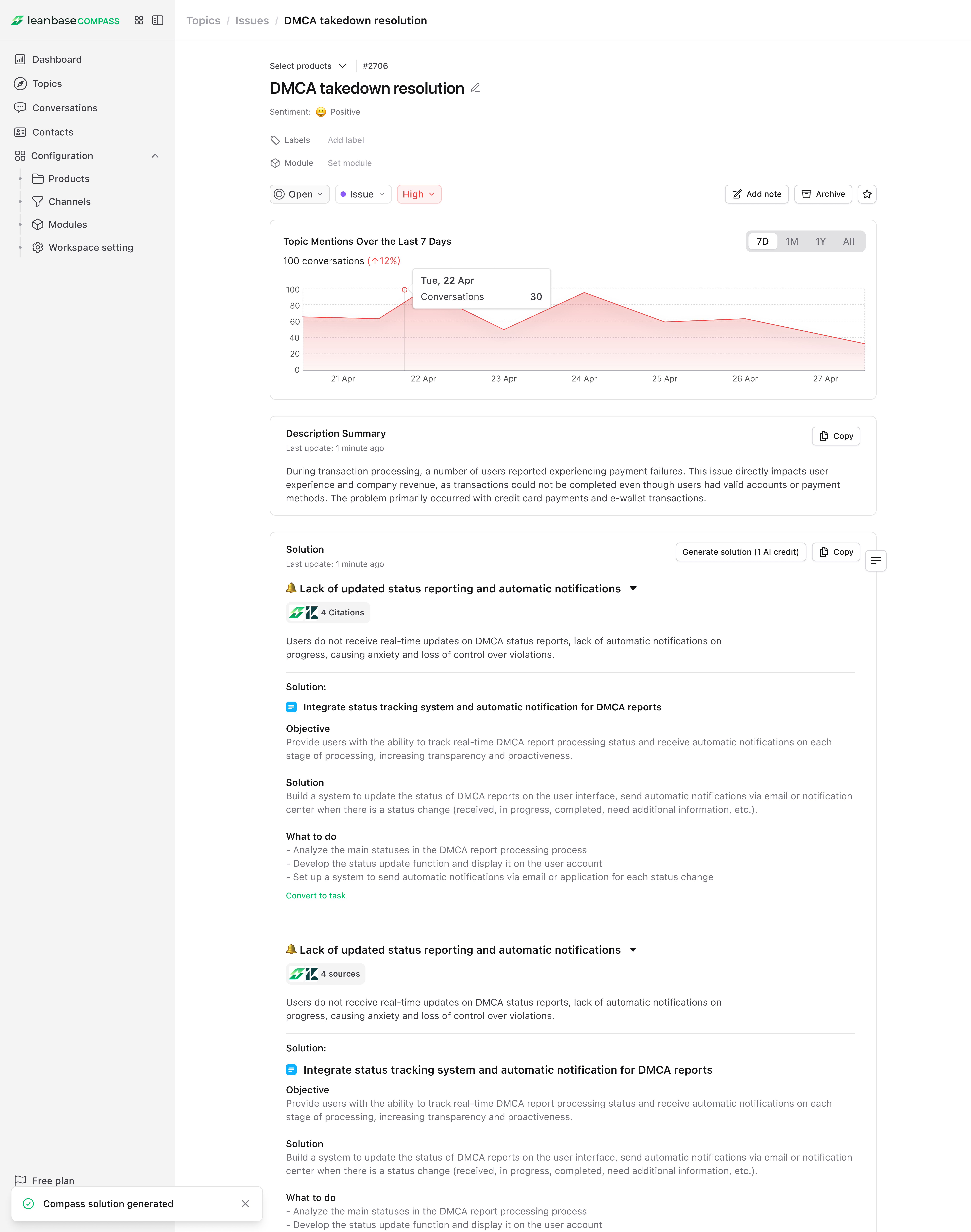
Scaling Tip: Use trend insights to allocate resources effectively as your customer base grows.
5. Filter and Contextualize Conversations
Focus on relevant interactions with full context. Contextual understanding improves response quality.
Step 1: Use filters (channel, topic, date) in the “Conversations” tab to narrow focus.
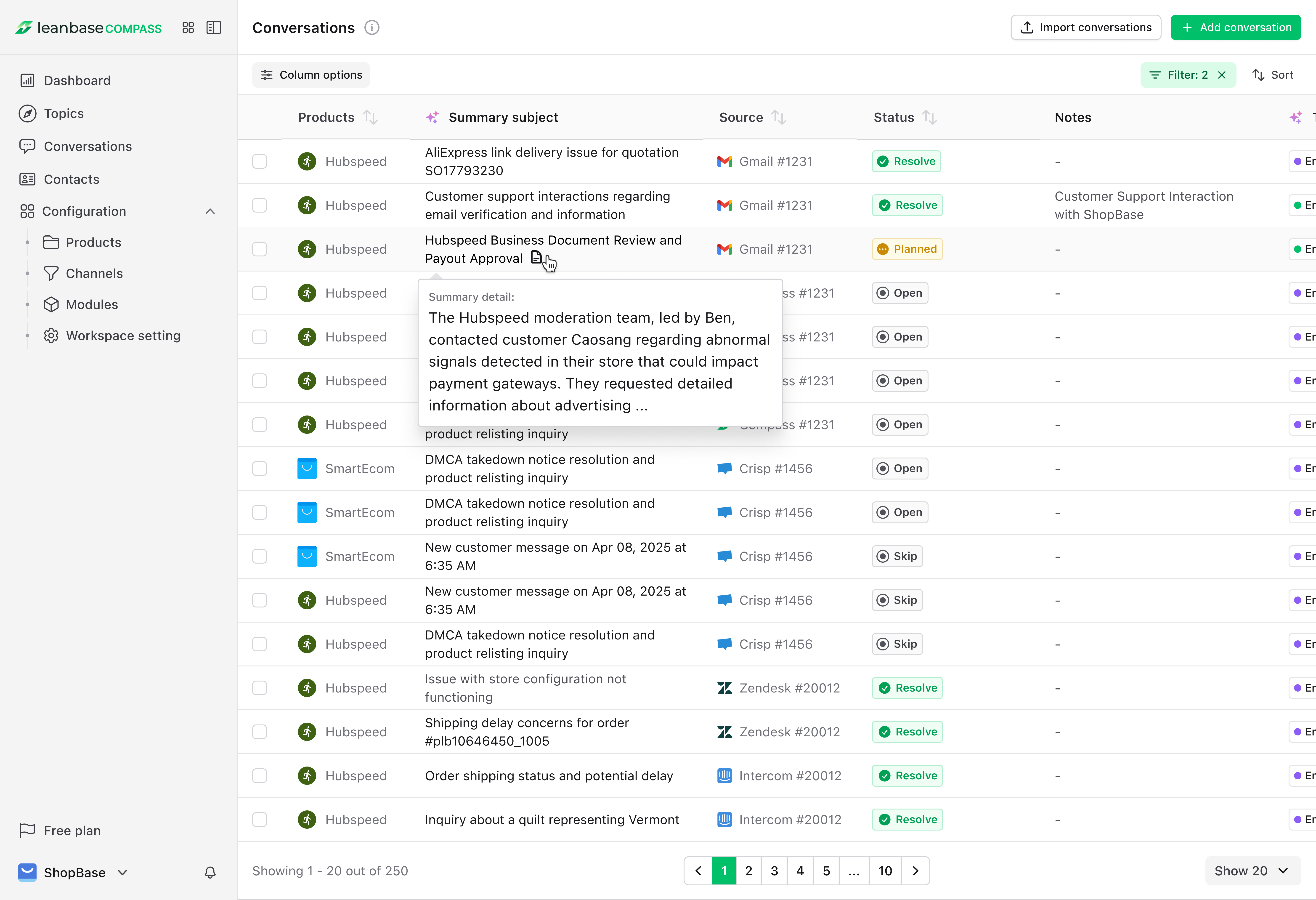
Step 2: Click conversation names to view full context, add notes, or start for follow-up.
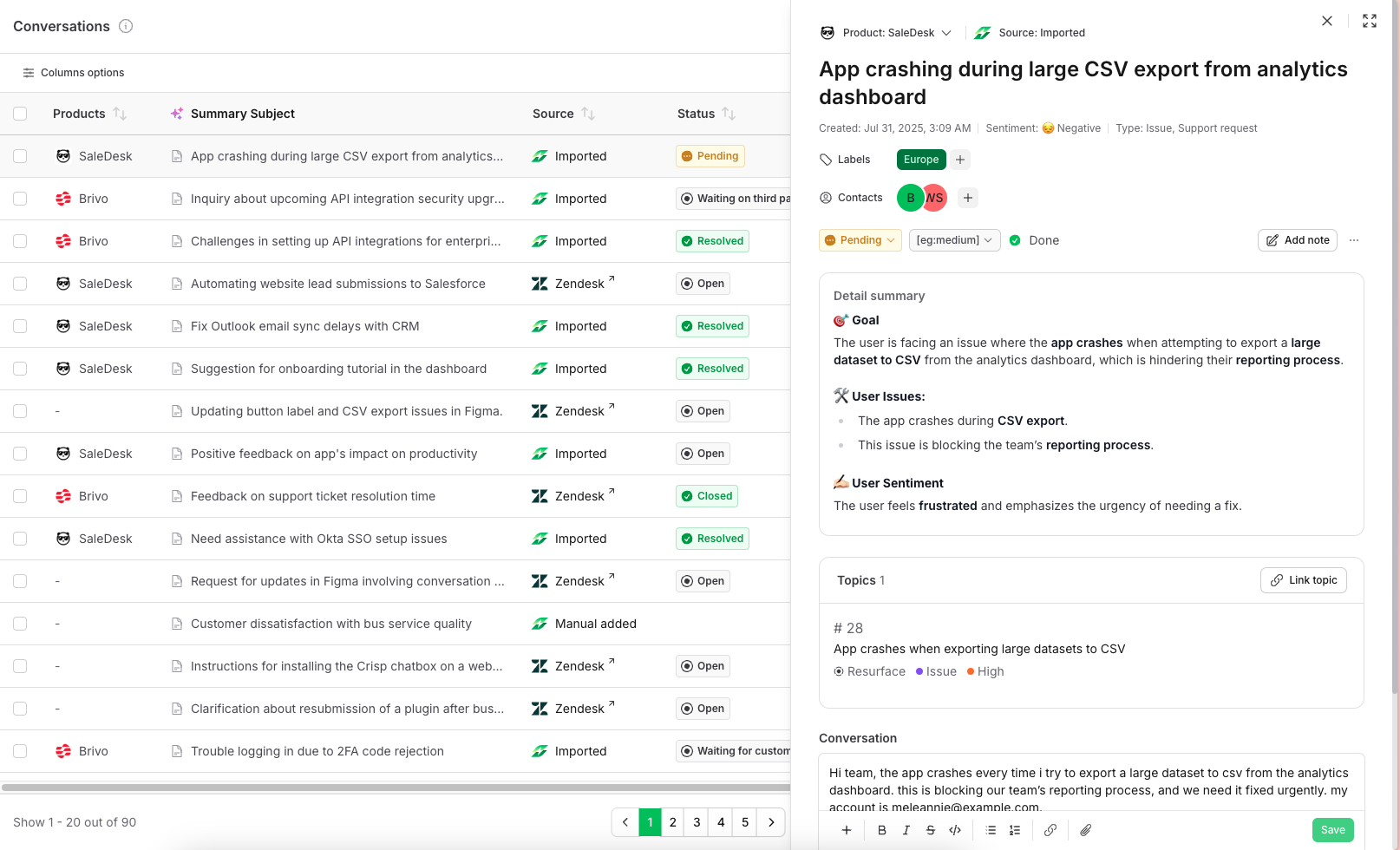
Scaling Tip: Train new team members to use filters and notes to maintain consistency at scale.
6. Add Custom Conversations
Comprehensive context improves issue resolution.
Step 1: Go to the “Conversations” tab.
Step 2: Click the “Add Conversation” button.
Step 3: Choose the conversation type (Quick-add or text-only).
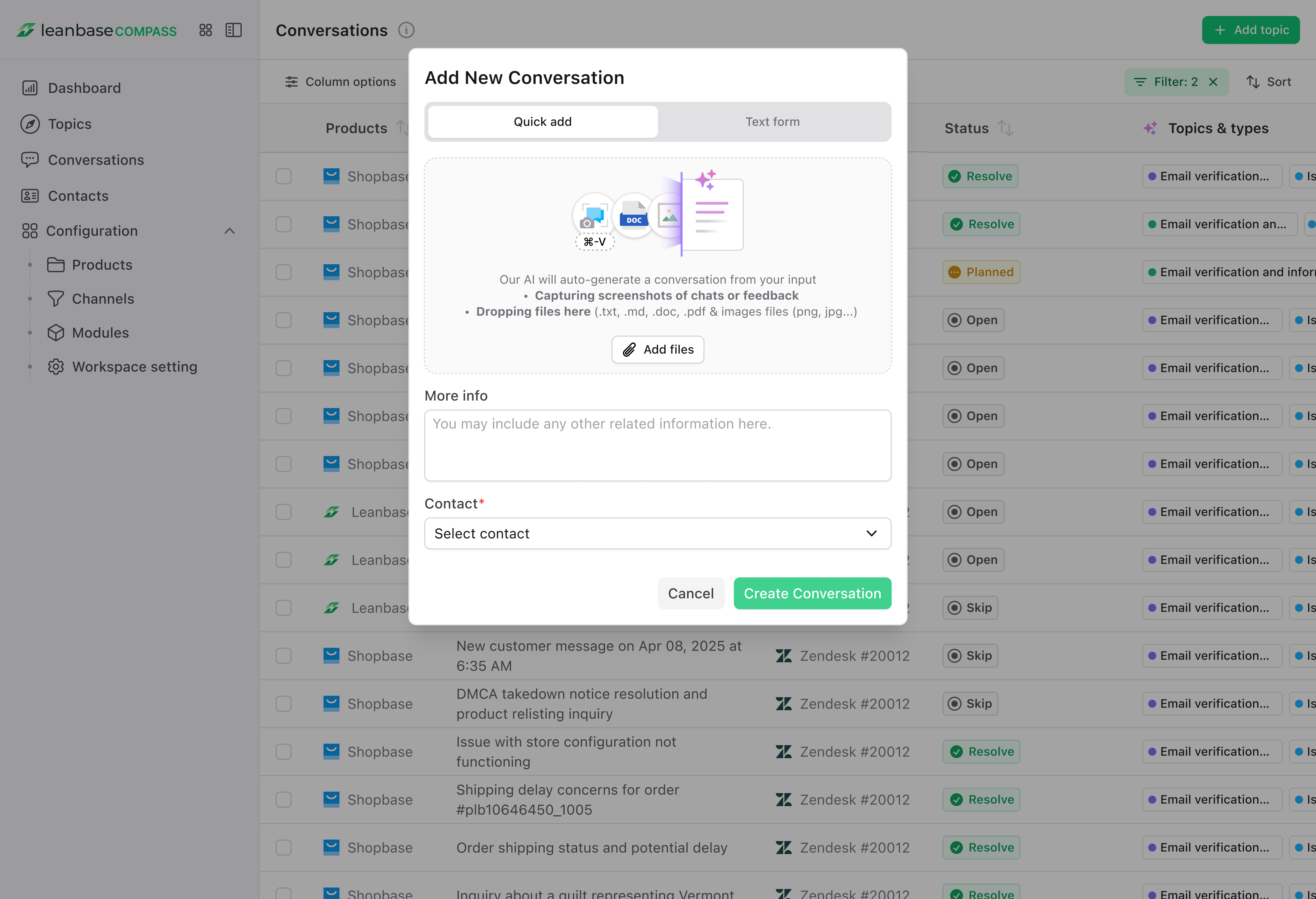
Step 4: For text-only, fill in required details; for Quick-add, drag and drop files/images and select a contact—AI handles the rest.
Scaling Tip: Standardize custom conversation templates for team-wide use as your support team expands.
7. Optimize Task Management
Efficient task management boosts customer satisfaction.
Step 1: Go to the “Topics” tab.
Step 2: Select a topic and open its details to review AI-identified root causes and suggested solutions.
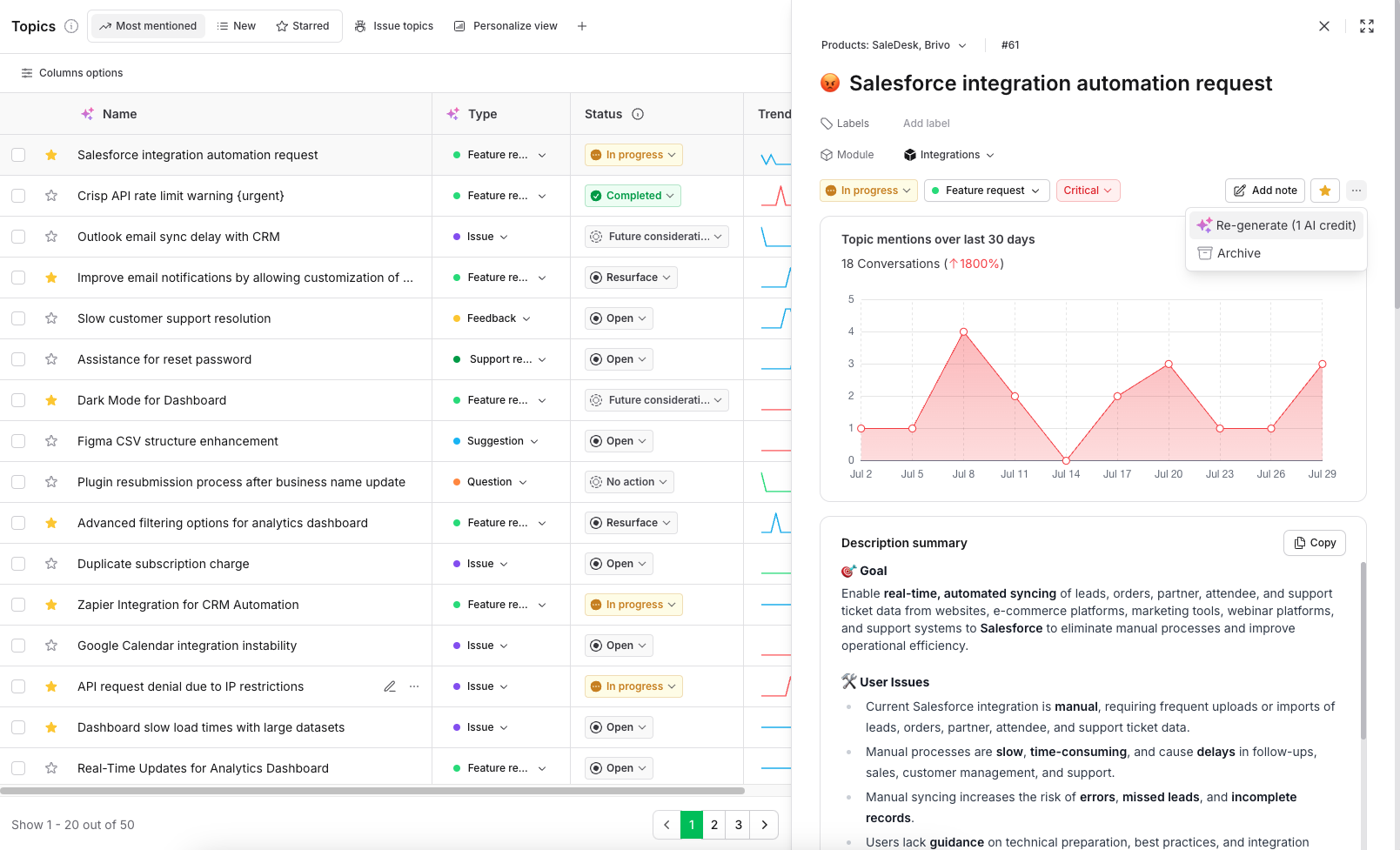
Step 3: In the topic details, locate the AI-suggested solution and click “Convert to Task” to auto-generate a task with a clear action plan.
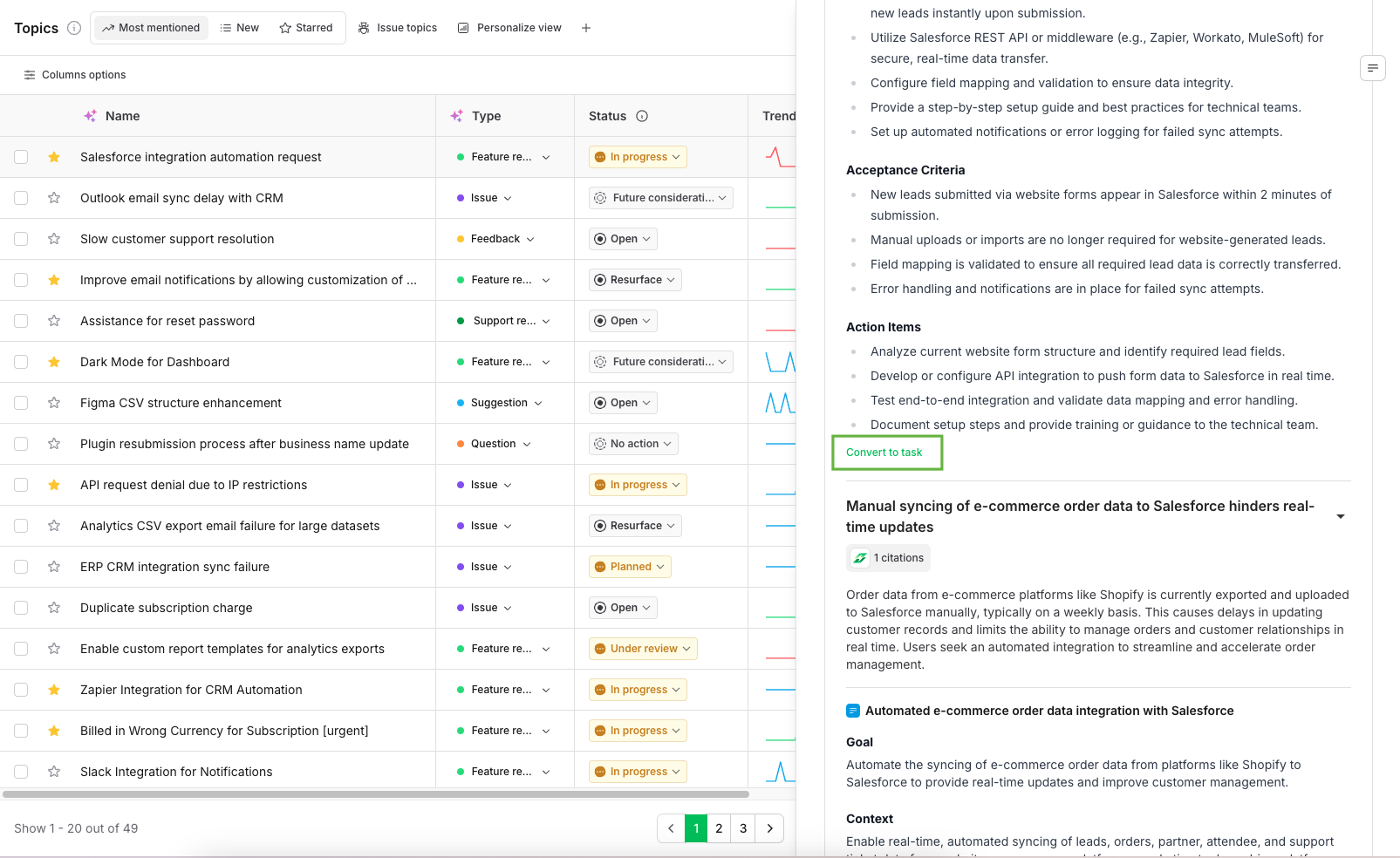
Step 4: Save the task to track progress in the “Tasks” section, ensuring alignment with the action plan.
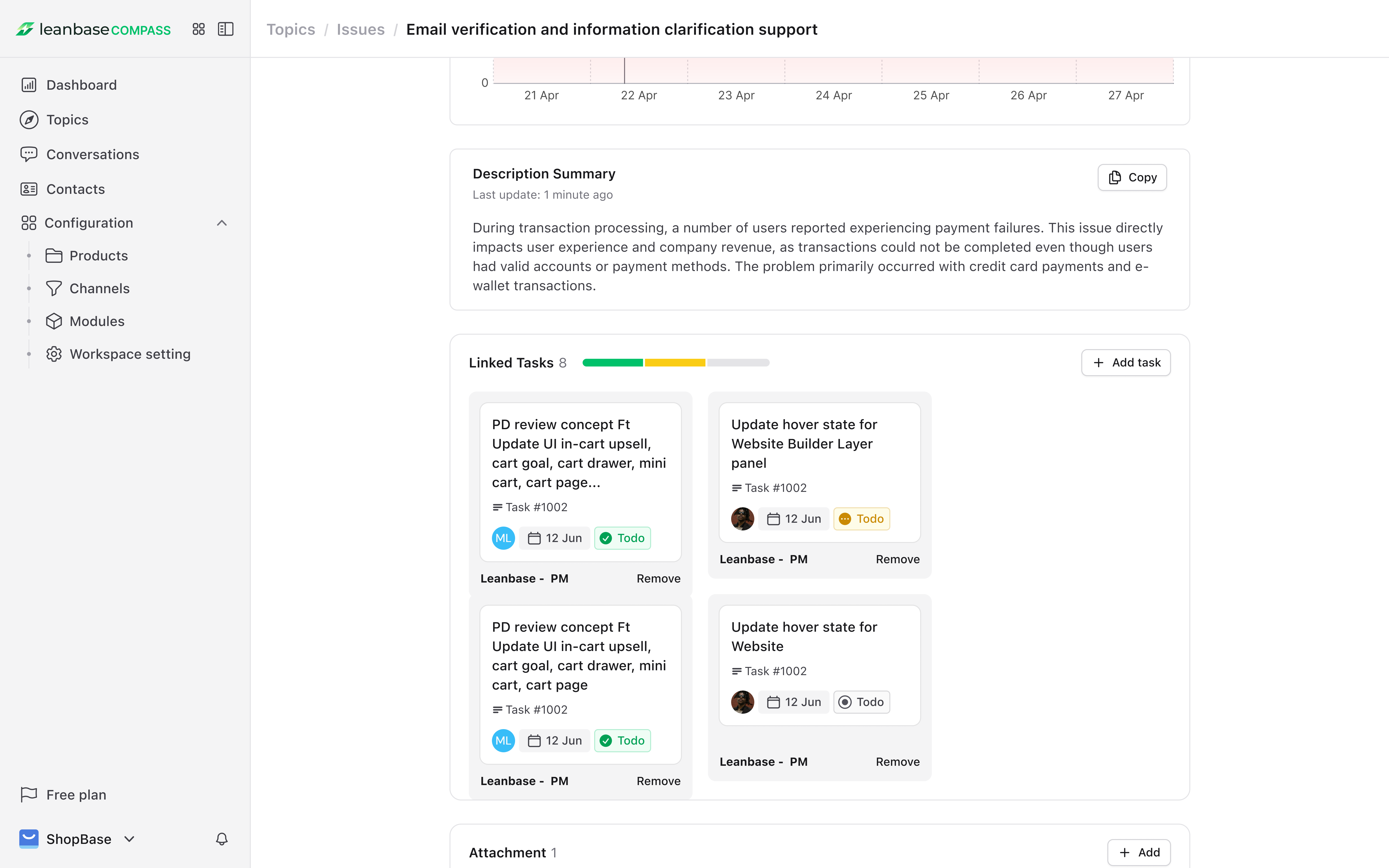
Scaling Tip: Create custom tasks in Leanbase Compass to align with your action plan, enabling tailored workflows.
8. Scale your team with flexible permission
Tailored permissions enhance security and efficiency, restricting access to essential functions while allowing flexible updates to support team growth and scalability.
Step 1: Navigate to “Workspace Settings > Team” in the Settings menu.
Step 2: Select an existing role to modify or create a new role.
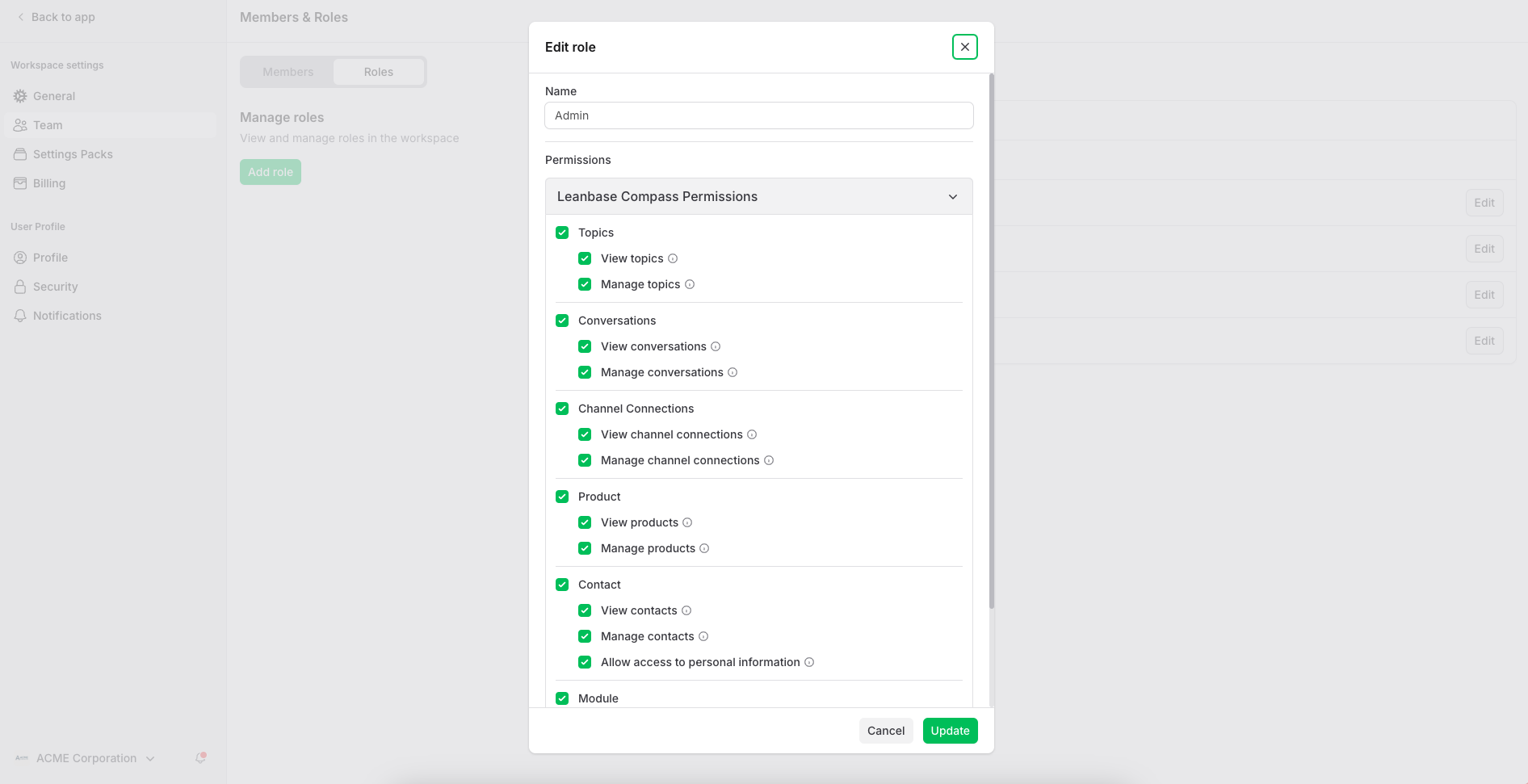
Step 3: Define specific permissions for the role to match its responsibilities.
Step 4: Assign the role to appropriate team members based on their duties.
Scaling Tip: Permissions safeguard sensitive user data by restricting access to authorized roles only, preventing leaks to unauthorized users.
Tips: Best Practices for Scaling
Start Small: Begin with key channels and a few modules to test workflows.
Iterate Regularly: Revise topics and modules to adapt to changing customer needs.
Automate Where Possible: Use AI suggestions and task templates to reduce manual work.
Monitor Metrics: Track conversation volume, resolution times, and customer satisfaction to identify bottlenecks.
Training team members: Access the Leanbase Help Center via the workspace menu for tutorials and documentation. Use customized training from Leanbase for team onboarding.
Ready to Get Started?
Log in to Leanbase Compass now and connect your first channel to start mining insights. Need help? Our support team is just a click away. Let's make your customer interactions smarter, faster, and more efficient!
Note: For more details, visit the Leanbase Help Center or explore support articles at leanbase.com.