What is Autocapture?
Autocapture
Leanbase can automatically capture a variety of events in your app without specific tracking code. This page covers the different types of events that Leanbase can capture and how to configure them.
Types of autocaptured events
Leanbase can automatically capture these types of data without specific tracking code:
Type |
Description |
Interaction |
Captures clicks, taps, and other user interactions |
Navigation |
Captures pageviews, pageleaves, and screen views |
Clipboard |
Captures copy and paste actions |
Shows where users interact with your product the most |
|
Captures clicks that don't trigger a change to the page |
|
Captures errors and crashes. See the error tracking docs for more information. |
|
Records real user behavior for playback. See the session replay docs for more information. |
|
Captures largest contentful paint, first input delay, cumulative layout shift, and first contentful paint |
|
Captures app launches, backgrounds, and updates. |
Supported SDKs
Autocapture is available in the following SDKs, each with a different set of captured events:
JavaScript Web - enabled by default
React - enabled by default
React Native - disabled by default
iOS - disabled by default
Looking for session and exception autocapture?
You can also autocapture session and exception events. See session replay and error tracking for more information.
Interaction autocapture
Web
iOS
React Native
Web interaction autocapture
The JavaScript web SDK captures the following events by default:
Interactions like clicks with a tag like a, button, form, input, select, textarea, label
Form submissions and form changes
Changes on content with contenteditable="true".
Copies from clipboard
Autocaptures are displayed with names like clicked span with text "Delete". You can filter for Autocapture events to see all interactions.
Configuring interaction autocapture
You can configure Leanbase-js to autocapture information that users copy or cut on your page with the capture_copied_text config option.
You can configure the following options:
Option |
Description |
|
url_allowlist Type: (string \| RegExp)[] |
List of URLs to enable autocapture on. Can be strings to match or regexes (e.g., ['https://example.com', 'test.com/.*']). Useful when you want to autocapture on specific pages only. If both url_allowlist and url_ignorelist are set, the allowlist is checked first, then the ignorelist (which can override the allowlist). |
|
url_ignorelist Type: (string \| RegExp)[] |
List of URLs to not enable autocapture on. Can be strings to match or regexes (e.g., ['https://example.com', 'test.com/.*']). Useful when you want to autocapture on most pages but not some specific ones. |
|
dom_event_allowlist Type: DomAutocaptureEvents[] |
List of DOM events to enable autocapture on (e.g., ['click', 'change', 'submit']). |
|
element_allowlist Type: AutocaptureCompatibleElement[] |
List of DOM elements to enable autocapture on (e.g., ['a', 'button', 'form', 'input', 'select', 'textarea', 'label']). We consider the element tree from root to target, so if button is in the allowlist, clicks on button or its children (like svg) are captured, but not clicks on parent div elements. |
|
css_selector_allowlist Type: string[] |
List of CSS selectors to enable autocapture on (e.g., ['[ph-capture]']). We consider the element tree from root to target, so if ['[id]'] is in the allowlist, clicks on elements with IDs or their parents with IDs are captured. Everything is enabled when there's no allowlist. |
|
element_attribute_ignorelist Type: string[] |
Exclude certain element attributes from autocapture (e.g., ['aria-label'] or ['data-attr-pii']). |
|
capture_copied_text Type: boolean |
When set to true, autocapture will capture the text of any element that is cut or copied. |
Here's a full example of how to configure autocapture:
Web
Leanbase.init('phc_CTMqwSYhUFLHhkWWDKZWUkDtFH025P3OwkWfb5h1Y2v', {
api_host: 'https://us.i.Leanbase.com',
defaults: '2025-05-24',
autocapture: {
// URL filtering
url_allowlist: ['https://example.com', 'test.com/.*'],
url_ignorelist: ['https://example.com/admin', 'test.com/private/.*'],
// Event filtering
dom_event_allowlist: ['click', 'change', 'submit', 'input'],
// Element filtering
element_allowlist: ['a', 'button', 'form', 'input', 'select', 'textarea', 'label'],
css_selector_allowlist: ['[ph-capture]', '[data-track]'],
// Attribute filtering
element_attribute_ignorelist: ['aria-label', 'data-attr-pii', 'data-sensitive'],
// Copy/cut capture
capture_copied_text: true,
},
})
Disabling interaction autocapture
You can disable autocapture in two ways:
In your project settings
By setting autocapture: false in the config
Web
// Before initialization
Leanbase.init('phc_CTMqwSYhUFLHhkWWDKZWUkDtFH025P3OwkWfb5h1Y2v', {
api_host: 'https://us.i.Leanbase.com',
defaults: '2025-05-24',
autocapture: false,
})
// Or after initialization
Leanbase.set_config({ autocapture: false })
Note: Disabling autocapture in your project settings isn't instant. Leanbase will continue to capture events where it is initialized. Instead, autocaptured events will taper off as users trigger reinitialization of Leanbase (like when they reload your site).
Disabling autocapture does not disable capture of page views or page leaves. See navigation autocapture for more information.
Capturing additional properties in autocapture events
If you add a data attribute onto an element in the format data-ph-capture-attribute-some-key={someValue}, then any autocapture event from that element or one of its children will have the property some-key: 'someValue' added to it. This can be useful when you want to add additional information to autocapture events.
As an example, say you have a notification bell with a value like this:
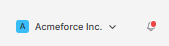
You can include the unread count in the autocapture event by adding the data-ph-capture-attribute class like this:
HTML
<div
onClick={toggleNotificationsPopover}
data-ph-capture-attribute-unread-notifications-count={unreadCount}
>
The autocapture event for clicks on the bell will include the unread count as an unread-notifications-count property.
Tracking metadata
You can also attach metadata to autocapture events by adding data attributes to the element that triggers the event. This helps you track something like a customer performing a transaction (adding an item to a cart or completing a purchase).
The below ecommerce example helps you understand what users are interested in, even if they don't complete a transaction. It can also reveal which products users are interested in when correlated with information like marketing campaigns, regionality, or device type.
HTML
<button
data-ph-capture-attribute-product-id={productId}
data-ph-capture-attribute-product-name={productName}
data-ph-capture-attribute-product-price={productPrice}
data-ph-capture-attribute-product-quantity={productQuantity}
>
Add to cart
</button>
Replace the {productXx} values with the relevant information available on the webpage. Now when the Add to cart button is clicked, the autocapture event will include the product information in the event's properties, like:
JSON
properties: {
"product-id": "12345678",
"product-name": "Red t-shirt",
"product-price": "30",
"product-quantity": "1"
}
Sending custom properties with autocaptured form submissions
To prevent accidental sensitive data capture, we do not automatically capture form values from form submissions. To add custom properties to form submissions, you can use the data-ph-capture-attribute attribute on the form element.
In this example, the product-id property will be sent with the form submission event. The product-name input will not be captured.
HTML
<form
data-ph-capture-attribute-product-id="12345678"
>
<input name="product-name" placeholder="this input will not be autocaptured"/>
<button type="submit">Submit</button>
</form>
The following example shows how you can use the data-ph-capture-attribute attribute dynamically in a React component. The product-name property will be sent with the form submission event.
TSX
import { useState } from 'react'
const MyForm = () => {
const [productName, setProductName] = useState('')
return (
<form
data-ph-capture-attribute-name={productName}
>
<input name="product-name" onChange={(e) => setProductName(e.target.value)} value={productName}/>
<button type="submit">Submit</button>
</form>
)
}
Rage clicks autocapture
A rage click is when a user clicks a button multiple times in quick succession, specifically more than 3 clicks in 1 second.
The event is captured as a $rageclick event. You can use this event to identify opportunities to improve your UI, as it shows where users are frustrated with your product.
Navigation and lifecycle event autocapture
Web
iOS
React Native
Web navigation autocapture
Leanbase automatically captures navigation events as $pageview and $pageleave events.
Configuring page navigation autocapture
You can configure the following options:
Option |
Description |
capture_pageview |
Type: boolean, 'history_change' (default). When set to history_change, autocapture will capture pageviews. This also works on single-page apps. |
capturePageleaves |
Type: boolean, 'if_capture_pageview' (default). When set to true, autocapture will capture pageleaves. If set to 'if_capture_pageview', it only captures pageleaves if capturePageviews is also set to true or 'history_change'. |
For example, your initialization code might look like this:
Web
Leanbase.init('phc_CTMqwSYhUFLHhkWWDKZWUkDtFH025P3OwkWfb5h1Y2v', {
api_host: 'https://us.i.Leanbase.com',
defaults: '2025-05-24',
capture_pageview: 'history_change',
capture_pageleave: 'if_capture_pageview'
})
Disabling page navigation autocapture
You can disable $pageview and $pageleave autocapture in two ways:
In your project settings
By setting capturePageviews: false and capture_pageleave: false in the config
For example:
Web
Leanbase.init('phc_CTMqwSYhUFLHhkWWDKZWUkDtFH025P3OwkWfb5h1Y2v', {
api_host: 'https://us.i.Leanbase.com',
defaults: '2025-05-24',
capture_pageview: false,
capture capture_pageleave ageleaves: false,
})
Clipboard autocapture
Note: This is only available for the JavaScript web SDK and framework libraries for web like React and Next.js.
When enabled with capture_copied_text set to true, we capture the copied or cut text as a Clipboard autocapture event. You can then use the $selected_content property in analysis or use the activity page to view the copied content in context.
Clipboard autocapture respects other privacy settings. For example, won't capture content from a password field.
Note: Browsers don't directly allow access to copied data for privacy reasons so when Leanbase-js sees a clipboard event, we capture any text currently selected in the browser.import { useSelector } from 'react-redux'
Heatmap autocapture
Note: This is only available for the JavaScript web SDK and framework libraries for web like React and Next.js.
If you use our JavaScript libraries and enable heatmap autocapture in your project settings, we can capture general clicks, mouse movements, and scrolling to create heatmaps. No additional events are created.
Whereas autocapture creates events whenever it can uniquely identify an interacted element, heatmaps are generated based on overall mouse or touch positions and are useful for understanding more general user behavior across your site.
Dead clicks autocapture
A dead click (or slow click) is a click which isn't followed by a change to the page.
Dead clicks are a great way to identify opportunities to improve your UI, showing you where your users expect to be able to interact with the page but cannot.
You can collect dead clicks with the Web SDK by enabling them in your project settings.
Or by setting your config:
Web
Leanbase.init('phc_CTMqwSYhUFLHhkWWDKZWUkDtFH025P3OwkWfb5h1Y2v', {
api_host: 'https://us.i.Leanbase.com',
defaults: '2025-05-24',
capture_dead_clicks: true,
// any other config
})
Note: The Leanbase heatmap captures dead clicks for free, collecting only the coordinates of dead clicks to display in heatmaps. Enabling the autocapture of dead clicks here allows for deeper analysis and is priced as a standard product analytics event.
Analyzing autocaptured events and properties
Autocapture events and properties can be used like any other event type. You can use them in trends, funnels, cohorts, surveys, and more. Beyond this, they come with some special features:
When using the autocapture event series, you can filter by the autocaptured element's tag name, text, href target, and/or CSS selector.
Autocapture events can be organized and renamed using actions.
You can query autocapture elements_chain using SQL.
Common autocapture filtering patterns
Searching for autocapture events by text
For UI interactions, you may see autocaptured events such as clicked span with text "Delete". You can filter these events by the UI text by using the Element text property.
Filter by interaction type
Autocaptured events have a more specific event type. For example, you can filter for all clicks by filtering for Autocapture events with the Event type property set to click. Check the interaction autocapture docs for more information on the different interaction types.
Filter for interactions with specific elements
Autocaptured events can also be filtered by its CSS selector. For example, you can filter for all interactions with a specific element by filtering for the CSS selector property as #my-element or .button--submit.
Captured properties
Web
iOS
React Native
Autocaptured events (and client-side custom events) have many default properties. These are distinguished by $ prefix in their name, the Leanbase logo next to them in the activity tab, and the verified event logo. You can find them in Leanbase or in the references.
Name |
Key |
Example value |
Timestamp |
$timestamp |
2024-05-29T17:32:07.202Z |
OS |
$os |
Mac OS X |
OS Version |
$os_version |
10.15.7 |
Browser |
$browser |
Chrome |
Browser Version |
$browser_version |
125 |
Device Type |
$device_type |
Desktop |
Current URL |
$current_url |
|
Host |
$host |
|
Path Name |
$pathname |
/page |
Screen Height |
$screen_height |
1080 |
Screen Width |
$screen_width |
1920 |
Viewport Height |
$viewport_height |
950 |
Viewport Width |
$viewport_width |
1903 |
Library |
$lib |
web |
Library Version |
$lib_version |
1.31.0 |
Referrer URL |
$referrer |
|
Referring Domain |
$referring_domain |
|
Active Feature Flags |
$active_feature_flags |
['beta_feature'] |
Event Type |
$event_type |
click |
UTM Source |
$utm_source |
newsletter |
UTM Medium |
$utm_medium |
|
UTM Campaign |
$utm_campaign |
product_launch |
UTM Term |
$utm_term |
new+product |
UTM Content |
$utm_content |
logolink |
Google Click ID |
$gclid |
TeSter-123 |
Google Ads Source |
$gad_source |
google_ads |
Google Search Ads 360 Click |
$gclsrc |
dsa |
Google DoubleClick Click ID |
$dclid |
testDclid123 |
Google Web-to-app Measure |
$wbraid |
testWbraid123 |
Google App-to-web Measure |
$gbraid |
testGbraid123 |
Facebook Click ID |
$fbclid |
testFbclid123 |
Microsoft Click ID |
$msclkid |
testMsclkid123 |
Twitter Click ID |
$twclid |
testTwclid123 |
LinkedIn Ad Tracking ID |
$la_fat_id |
testLaFatId123 |
Mailchimp Campaign ID |
$mc_cid |
testMcCid123 |
Instagram Share Id |
$igshid |
testIgshid123 |
TikTok Click ID |
$ttclid |
testTtclid123 |
IP Address |
$ip |
192.168.1.1 |
Notes:
If enabled, GeoIP data is added also as properties at ingestion.
Many of these are also captured as session properties.
These properties can be hidden in activity by checking the Hide Leanbase properties box.