How to create a board
Creating a board in Leanbase is quick and intuitive. Begin by choosing a template or starting from scratch, customizing the layout and fields to fit your workflow. Organize tasks, add members, and configure roles to streamline collaboration and project management.
In Leanbase, a board is a workspace designed to organize and manage tasks or projects visually. It acts as a central hub where tasks are displayed in customizable views like Kanban, List, or Timeline, allowing teams to collaborate efficiently. Boards support custom fields, statuses, tasktypes,… enabling tailored workflows for different projects.
Board Views in Leanbase
In Leanbase, boards provide multiple views to suit varying team needs and workflows. These include:
-
Kanban View:
Organize tasks into columns representing different stages of a workflow.
Drag-and-drop tasks to adjust progress visually.
-
List View:
Presents tasks in a table-like format for easy sorting, grouping, and filtering.
Provides detailed task information in one view.
-
Timeline View:
Displays tasks along a timeline for managing schedules and dependencies.
Ideal for planning and tracking project phases.
Leanbase’s versatile views enhance productivity, enabling teams to manage tasks effectively across workflows and priorities.
How to create board simply
Create board
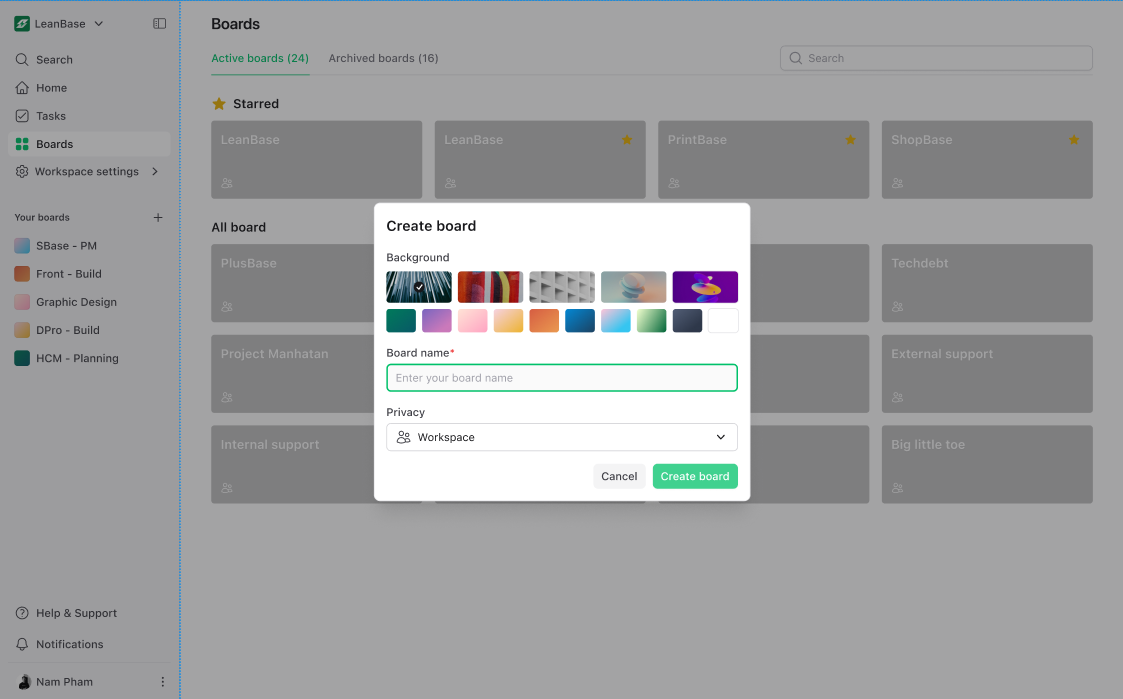
Navigate to the Boards section.
Click on Create New Board.
Fill in the required details such as the board name and select the desired privacy type for the board.
Choose a background color to personalize it.
This setup ensures the board aligns with your team's preferences and project needs.
Add Tasks
Leanbase introduces a hierarchical task management system with three levels: Modules, Tasks, and Subtasks. Users can fully customize task types to suit specific project needs, offering flexibility for diverse workflows. This structure ensures both high-level organization and granular control. This is how to create a task:
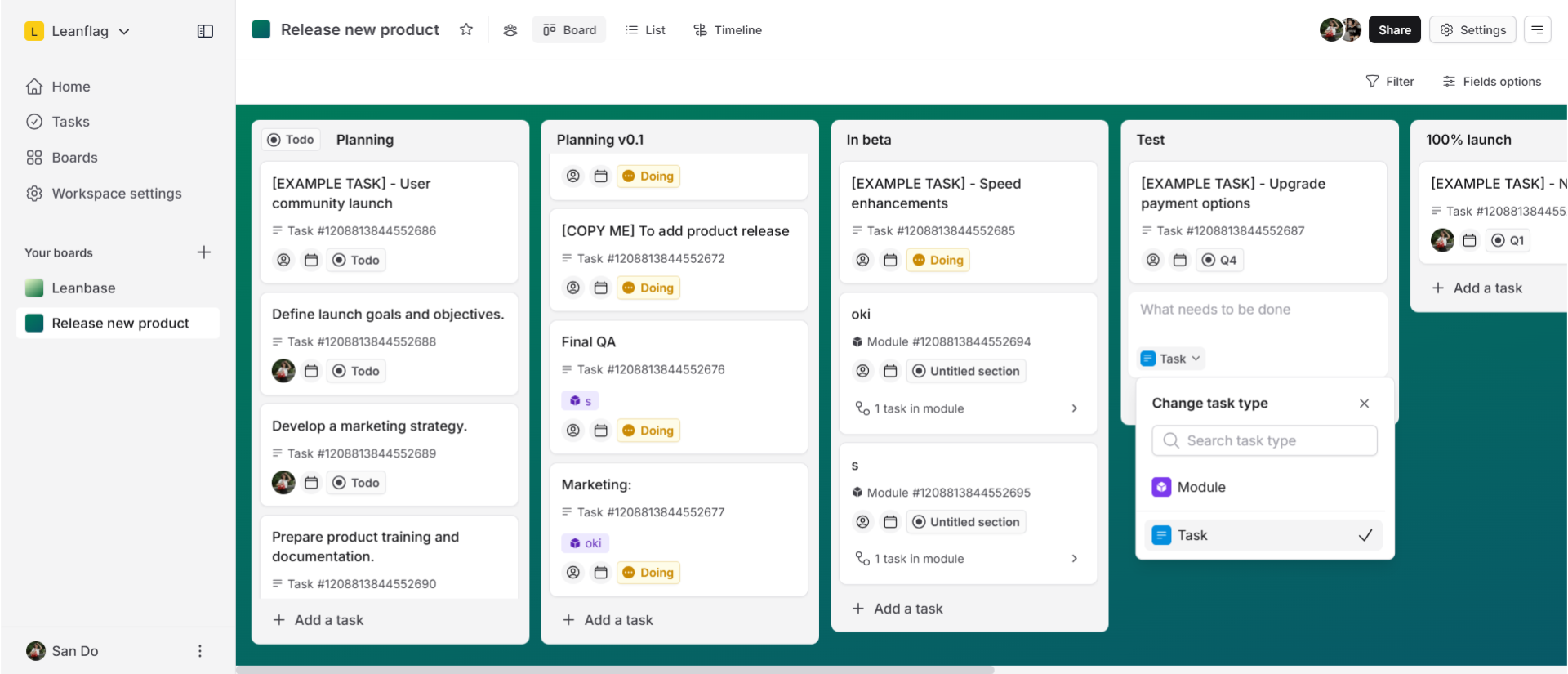
In Leanbase, user can go to Add a task button to create a new task. User can select tasktype in the task icon dropdown on the left.
Edit Task details
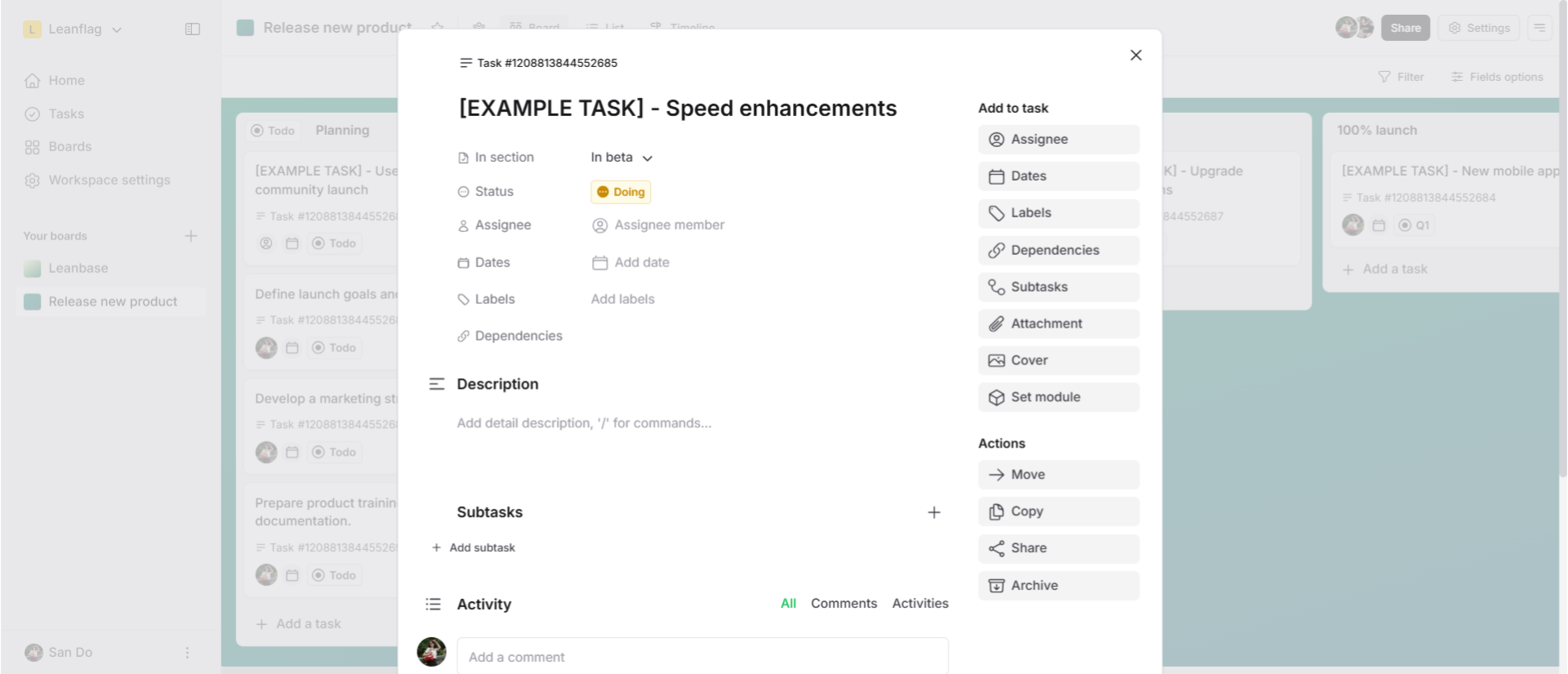
After naming a task, the user can open its details. Within the task details, they can assign members, change the section, update the status, add a cover, and perform other task-related actions.
Add Subtasks
Leanbase introduces a hierarchical task management system with three levels: Modules, Tasks, and Subtasks. Users can fully customize task types to suit specific project needs, offering flexibility for diverse workflows. This structure ensures both high-level organization and granular control. This is how to create a task