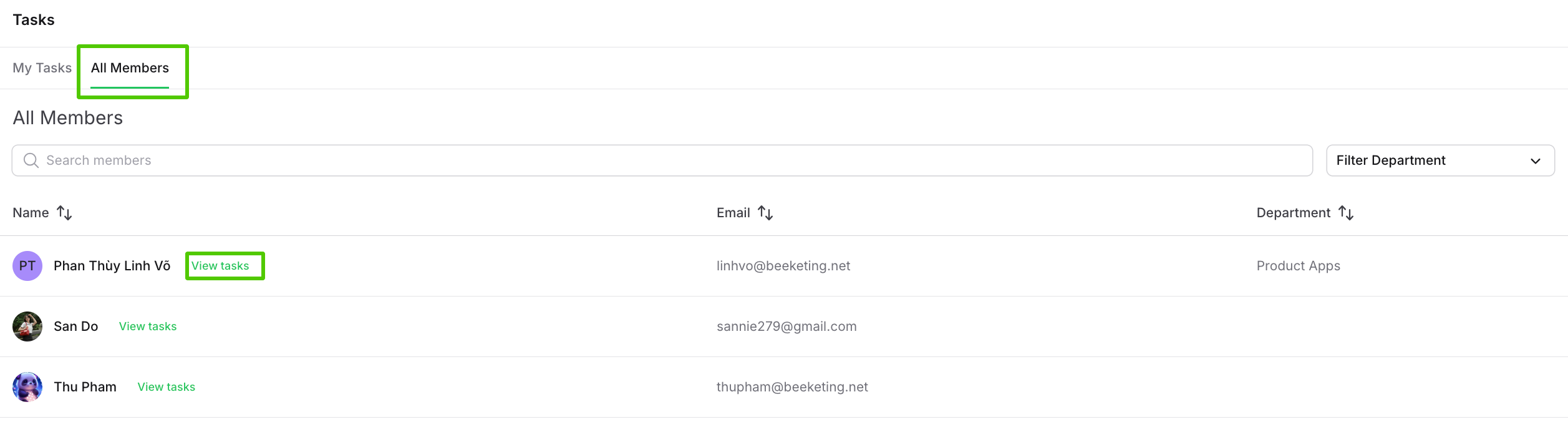
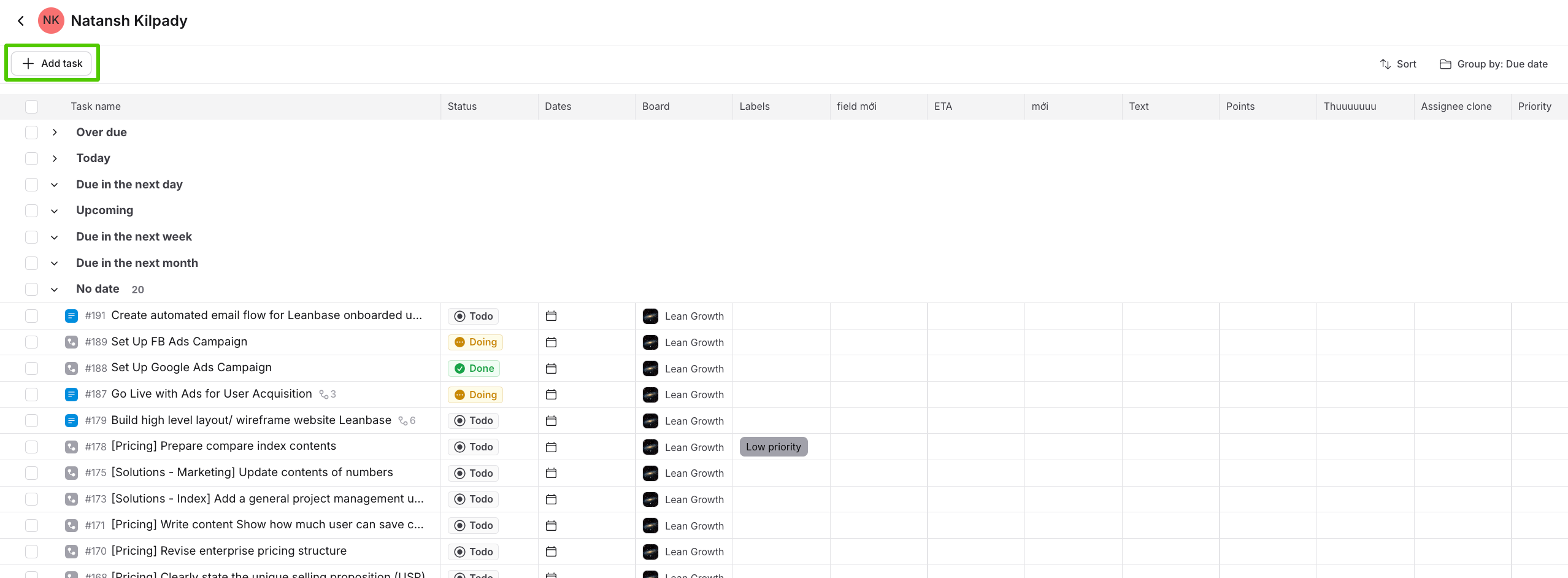
The Task Explorer is your centralized hub for tracking and managing tasks. It provides a clear overview of your responsibilities and those of your team members. Key features include:
Personalized task view: Focus on tasks assigned to you.
Team task visibility: Switch to member tabs or search for specific individuals to view their tasks.
Manage my tasks
Navigate to the Tasks tab.
-
View all tasks assigned to you, classified as:
To Do: Includes all tasks except those in the Done column.
Complete: Includes all tasks in Done column.
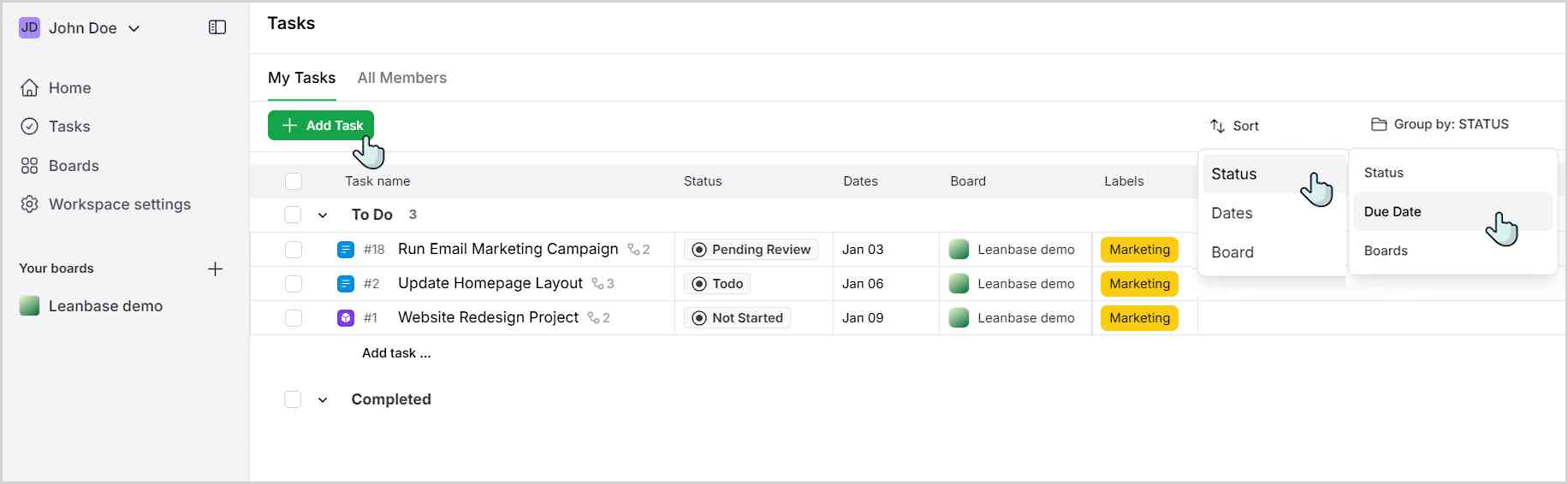
Update or add task details such as status, due date, board, or label.
Use filters to sort tasks by criteria such as status, date, or board.
Add a new task directly within the view page.
Assign tasks for yourself
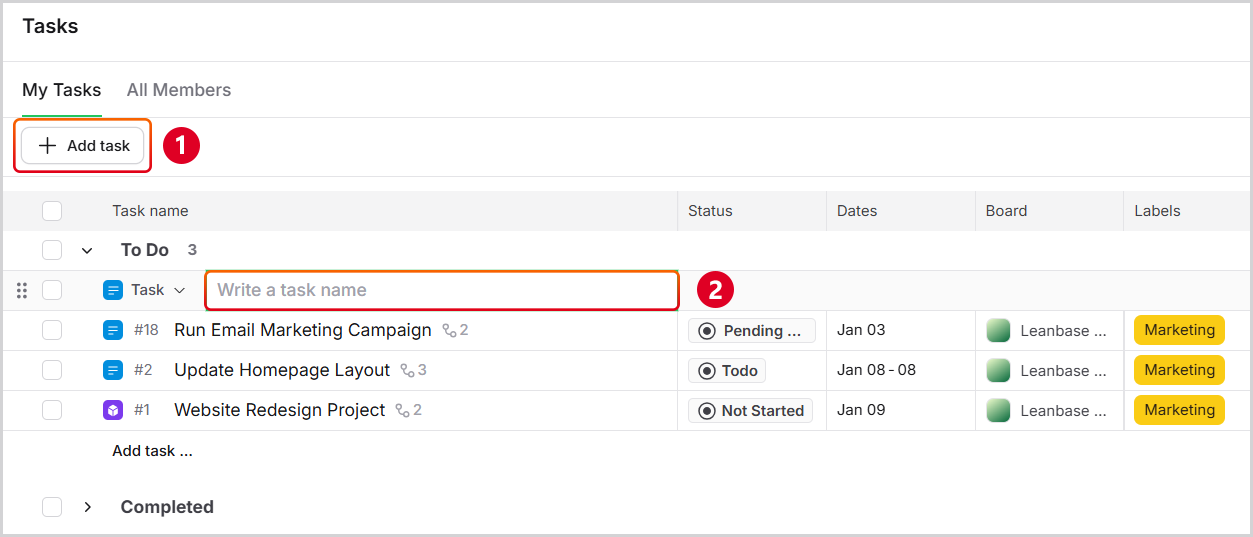
Adding a new task in the My Tasks tab will automatically assign it to you.
Navigate to My tasks on Task
Click button Add task
Type a task name
Enter to save task
View members’ tasks
Open the Tasks section.
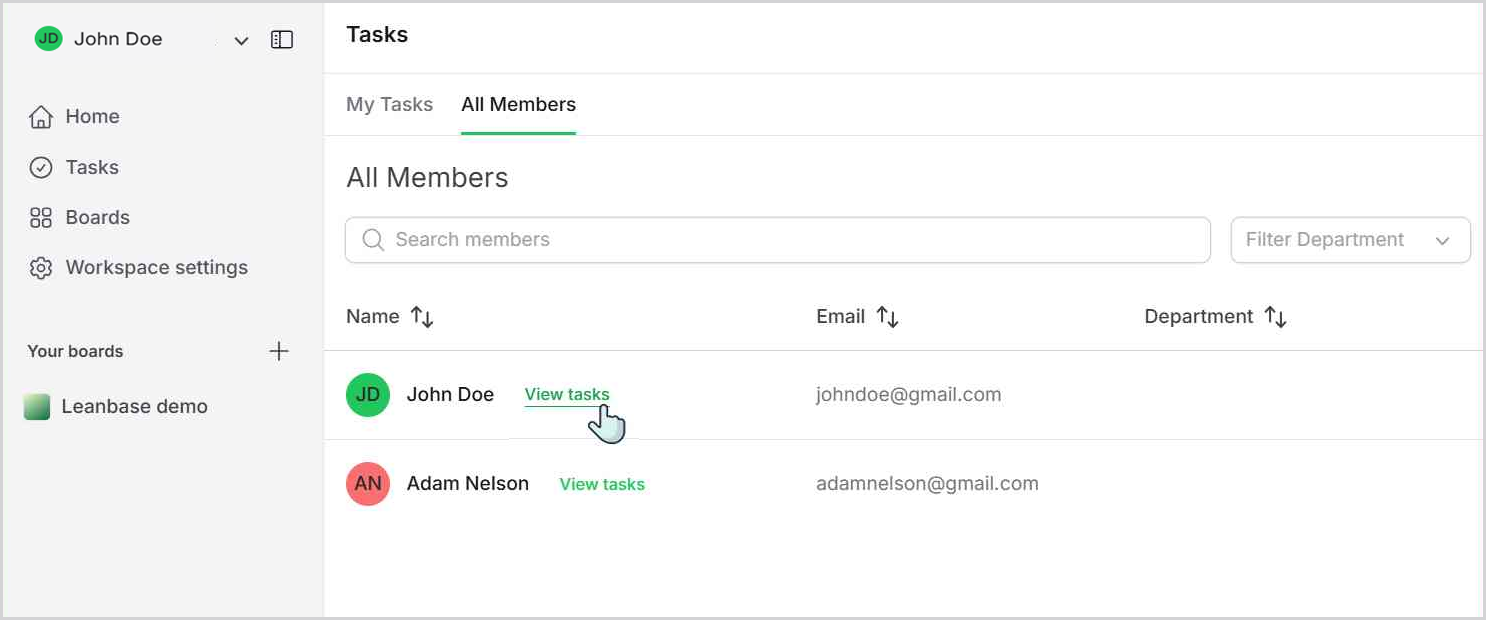
Navigate to All Members to see all tasks of a specific member.
Click on View Task next to a member’s name to view their assigned tasks.
Assign task for members quickly
Switch to the All Member tab.
Search for the desired member.
Click the Add Task button.
Type the task name.
Press Enter to save the task.